Connect integrations
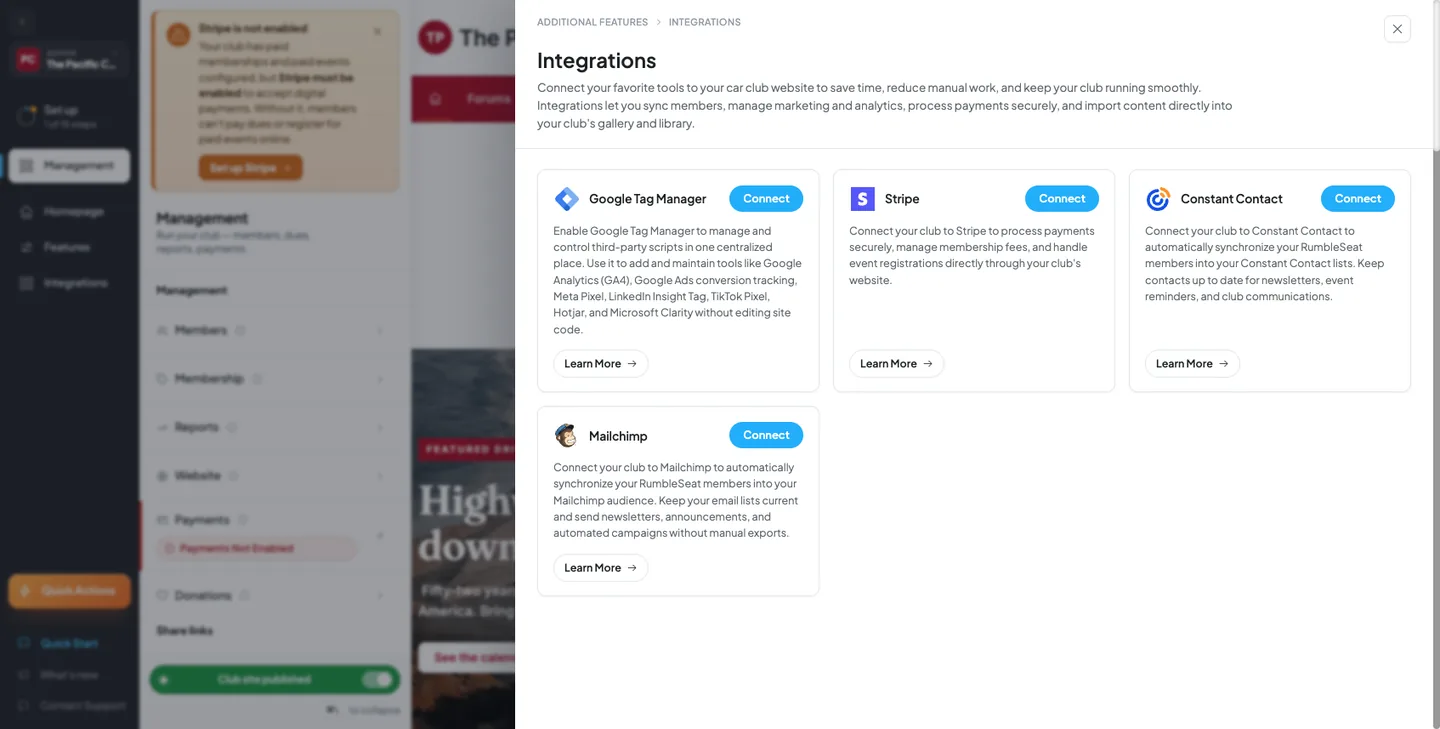
Integrations connect your club's website to outside tools for payments, email marketing, and analytics, so members flow into the systems you already use instead of you exporting lists by hand. Manage them from Control Panel → Integrations, where Google Tag Manager, Stripe, Constant Contact, and Mailchimp each show their own connection status.
Before you begin
- Who can do this: an owner-admin of the club. The Integrations rail item is never shown to a delegated Content or Finance scope viewer, even though those viewers do see a stripped-down Control Panel for their own scope.
- You will need the club's website already set up; see Customize your club website.
- For Stripe, have your business and banking details on hand before you start, since Stripe's own onboarding flow asks for them. See Set up Stripe payments for the full walkthrough.
- For Constant Contact or Mailchimp, make sure your browser allows popups for RumbleSeat, since connecting either service opens a sign-in popup.
- For Google Tag Manager, have your GTM container ID ready (it looks like
GTM-ABC1234).
Step-by-step
Open the Control Panel and click Integrations in the left rail. This opens the Integrations shelf on top of the panel, showing a card for each of the four supported tools with a Connect button or a Connected status.
Google Tag Manager
- On the Google Tag Manager card, click Connect.
- RumbleSeat takes you to the Website settings shell instead of opening a popup. Google Tag Manager does not connect through the Integrations shelf itself.
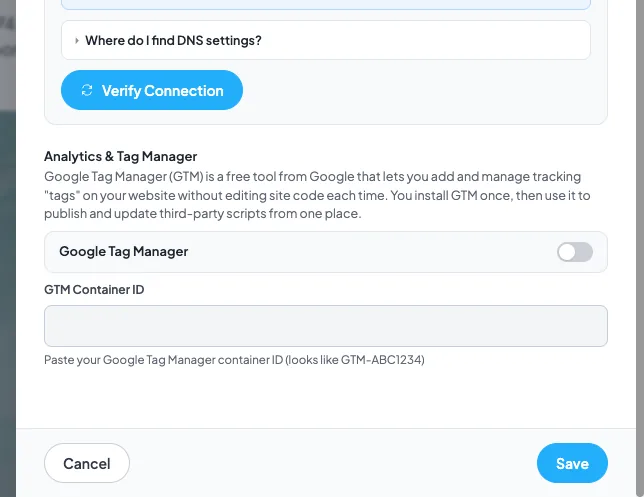
- In Website settings, find the Analytics & Tag Manager section and turn on the Google Tag Manager toggle.
- Enter your container ID in the GTM Container ID field. It must match the format
GTM-XXXXX. - Click Save. Your container ID is saved along with the rest of your website settings.
There is no separate disconnect action for Google Tag Manager. Turn it off from the same toggle in Website settings.
Stripe
- On the Stripe card, click Connect. This opens the Stripe setup modal.
- Click Set Up Stripe Account. RumbleSeat opens a new tab and sends you to Stripe's own onboarding flow.
- Complete Stripe's onboarding steps in that tab (business details, banking information, identity verification).
- Back in RumbleSeat, once Stripe confirms your account can accept charges, the Stripe card shows Connected.
For the full onboarding walkthrough, see Set up Stripe payments. Once connected, ongoing payment operations are covered in Manage club Stripe payments.
Constant Contact
- On the Constant Contact card, click Connect.
- A sign-in popup opens to Constant Contact. Log in and approve the connection.
- When the popup closes, the card flips to Connected.
- On the connected card, click Select Email Lists to choose which of your Constant Contact audience lists your club members sync to.
- In the Select Email Lists modal, check the lists you want and click Save.
Mailchimp
- On the Mailchimp card, click Connect.
- A sign-in popup opens to Mailchimp. Log in and approve the connection.
- When the popup closes, the card flips to Connected.
- On the connected card, click Select Email Lists to choose which of your Mailchimp audience lists your club members sync to.
- In the Select Email Lists modal, check the lists you want and click Save.
Disconnect an integration
- On a connected Stripe, Constant Contact, or Mailchimp card, click Disconnect.
- A confirmation dialog appears explaining what disconnecting does. Click Yes, disconnect to proceed, or Cancel to back out.
- Once confirmed, the card flips back to showing Connect.
Disconnecting Stripe does not delete your Stripe account or touch existing Stripe data, and it does not change any member's RumbleSeat profile or membership. Disconnecting Constant Contact or Mailchimp clears your saved email-list selection; you can reconnect and pick lists again anytime. Google Tag Manager has no Disconnect button; turn it off from the toggle in Website settings instead.
Field reference
| Field | Required | Format / limits | Notes |
|---|---|---|---|
| Google Tag Manager (toggle) | No | On/off switch | Reflects whether GTM is currently enabled for your site. |
| GTM Container ID | Required if the toggle is on | Text, must match GTM-XXXXX (letters and numbers, at least 4 characters after GTM-) | Disabled entirely while the toggle is off. Hint text: "Paste your Google Tag Manager container ID (looks like GTM-ABC1234)". |
| Email list checkboxes (Select Email Lists modal) | No (an empty selection clears your sync list) | Multi-select checkbox list | Options are pulled live from your connected Constant Contact or Mailchimp account each time you open the picker. Save is only enabled once your selection differs from what's already saved. |
What happens next
Connecting Constant Contact or Mailchimp does not immediately send anything, mail, or post to your activity feed. It only sets up the sync path; actual list syncing runs separately. Connecting Stripe hands you off to Stripe's own onboarding, and your account only shows Connected once Stripe confirms it can accept charges. Saving your Google Tag Manager settings persists the container ID with the rest of your website settings, no separate confirmation screen.
Fixing problems
"Constant Contact client ID not available" — the connection couldn't start because the app configuration wasn't loaded. Refresh the page and try Connect again.
"Mailchimp client ID not available" — same cause as above, but for Mailchimp. Refresh the page and try Connect again.
"Popup blocked. Please allow popups for this site." — your browser blocked the sign-in popup for Constant Contact or Mailchimp. Allow popups for RumbleSeat and click Connect again.
"Connection cancelled." — the sign-in popup closed before you finished logging in and approving the connection. Click Connect and complete the provider's sign-in flow without closing the popup.
"No authorization code received" — the provider didn't return the information RumbleSeat needs to finish connecting. Try Connect again.
"Couldn't connect Constant Contact" or "Couldn't connect Mailchimp" — the connection request reached RumbleSeat but failed to save. Try Connect again in a moment.
"Constant Contact connected" or "Mailchimp connected" — this success message confirms the provider finished connecting. The card flips to Connected and you can now use Select Email Lists.
"Disconnect Constant Contact?" or "Disconnect Mailchimp?" — the confirmation dialog for disconnecting either provider. Its body explains that disconnecting removes the connection between your club and that provider, so any saved sync settings will be cleared, and that you can reconnect anytime. Click Yes, disconnect to proceed or Cancel to back out.
"Already disconnected" — you clicked Disconnect on a card RumbleSeat has no record of connecting. No action needed; the card already reflects a disconnected state.
"Couldn't disconnect" — the disconnect request failed. Try clicking Disconnect again.
"Integration disconnected" — this success message confirms Constant Contact or Mailchimp finished disconnecting. The card flips back to Connect.
"Disconnect your Stripe account?" — the confirmation dialog for disconnecting Stripe. Its body reads: "Disconnecting removes the connection between your RumbleSeat account and your Stripe account, so we'll no longer be able to process or manage payments through it. Your car club membership, profile, and data stay unchanged, and you can reconnect anytime. This doesn't delete your Stripe account or affect existing Stripe data. You may need to reconnect to continue using payment features." Click Yes, disconnect to proceed or Cancel to back out.
"Removes Stripe connection only. Membership stays active. Reconnect anytime." — this tooltip appears when you hover the Disconnect button on a connected Stripe card. It is informational, not an error.
"Couldn't disconnect Stripe" — Stripe disconnection failed on the server. Try again in a moment.
"Stripe account disconnected" / "Your Stripe account has been successfully disconnected. Your RumbleSeat profile and memberships remain active." — this success message confirms Stripe finished disconnecting. The card flips back to Connect.
"Couldn't reach Stripe" / "Try again in a moment." — RumbleSeat couldn't start the Stripe onboarding link. Try clicking Set Up Stripe Account again.
"Couldn't load email lists" / "Try again in a moment." — the Select Email Lists modal couldn't fetch your provider's lists and will close on its own. Reopen Select Email Lists to try again.
"No email lists found in your Constant Contact account." (or "…in your Mailchimp account.") — this shows inside the Select Email Lists modal when your connected account has no audience lists yet. Create a list in Constant Contact or Mailchimp directly, then reopen the picker.
"Loading email lists…" — this shows briefly inside the Select Email Lists modal while RumbleSeat fetches your provider's lists. It clears once the lists (or the empty state) load.
"Couldn't save email lists" / "Try again in a moment." — your list selection didn't save. Try clicking Save again.
"Email lists updated" — this success message confirms your list selection saved. The Select Email Lists modal closes.
"Container ID must match the format GTM-XXXXX." — the value you entered doesn't match a valid GTM container ID. Double-check the ID in your Google Tag Manager account and re-enter it exactly, including the GTM- prefix.
Tips & tricks
- Reconnecting Stripe, Constant Contact, or Mailchimp after a disconnect does not lose your club's membership data. Only the connection to the outside tool is affected.
- If a Connect or Disconnect button seems unresponsive, wait a moment. RumbleSeat blocks a second click on the same card while the first request is still in flight.
- Check that your Google Tag Manager container ID matches the exact format Google gave you. A stray character is the most common reason the field won't save.
Frequently asked
Can I connect Google Drive from the Integrations panel? No. Google Drive is connected per-admin from the Gallery/Library page's Import from Drive button, not from Control Panel → Integrations.
Do I need to reconnect Constant Contact or Mailchimp after disconnecting? Yes, but nothing about your club or members is affected in the meantime. Click Connect on the card and sign in again, then use Select Email Lists to pick your lists again.
Does disconnecting Stripe cancel existing memberships or payments? No. Disconnecting only unlinks your Stripe account from RumbleSeat. Your club's memberships, profile, and past payment data stay unchanged, and existing Stripe data isn't touched.
Why does clicking Connect on Google Tag Manager send me to a different page? Google Tag Manager doesn't use a sign-in popup like Constant Contact or Mailchimp. It's set up directly with a container ID in Website settings, so Connect routes you there instead.
Can I choose more than one email list to sync? Yes. The Select Email Lists modal is a multi-select, so you can check as many of your provider's lists as you want, or leave it empty to clear your selection.