Test member payments without charging a card
Test payments lets a club admin walk through the payments a member makes on the club's website: joining, renewing, registering for an event, donating and giving a membership. You see the same card form your members see, and nothing is charged or saved. Use it to check your prices, questions and wording before members run into them.
Before you begin
- You need to be signed in as an admin of the club.
- You don't need Stripe connected. If it isn't, each payment step tells you that real members can't pay at that step yet. To connect it, see Set up Stripe payments (admin).
- You don't need a real card. The test card number is 4242 4242 4242 4242, with any future date and any CVC.
- Test payments stays on for one club in one browser tab. It stays on if you reload the page.
Turn on Test payments
There are a few ways in. They all turn on the same thing.
- On a computer: on your club's website, click Test payments in the dark bar under the club's menu. On a narrower window, it's under More.
- From the Control Panel, on a computer: open Management and click Test member payments. See Access the Control Panel.
- On a phone: tap Menu, then Test member payments.
- If Stripe isn't set up yet: when the Control Panel shows the Stripe is not enabled notice, click See what members see on it. That turns on Test payments and opens the join steps.
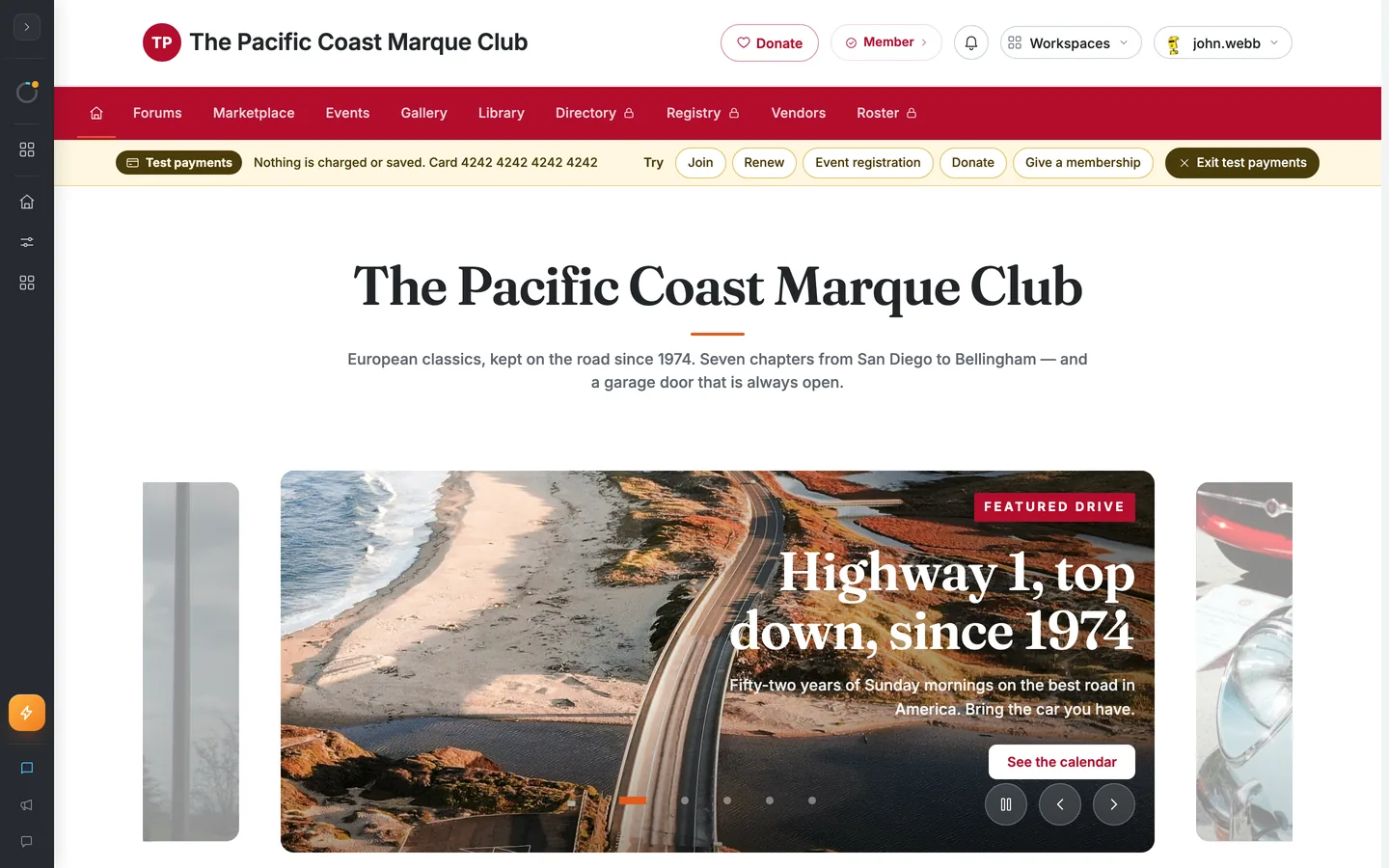
A message confirms "Test payments is on". The page switches to what a member sees, and a yellow banner appears across the top. On a wide screen it is labelled Test payments and reads "Nothing is charged or saved".
Step-by-step
- In the banner, pick a payment to walk through. If they don't all fit, slide the list sideways.
- Join opens the steps a new member goes through.
- Renew opens the membership page.
- Event registration opens the club's events. Open an event and click Register Now.
- Donate opens the donate page. It only shows if your club takes donations.
- Give a membership opens the gift membership page.
- Go through the steps the way a member would, until you reach the payment step.
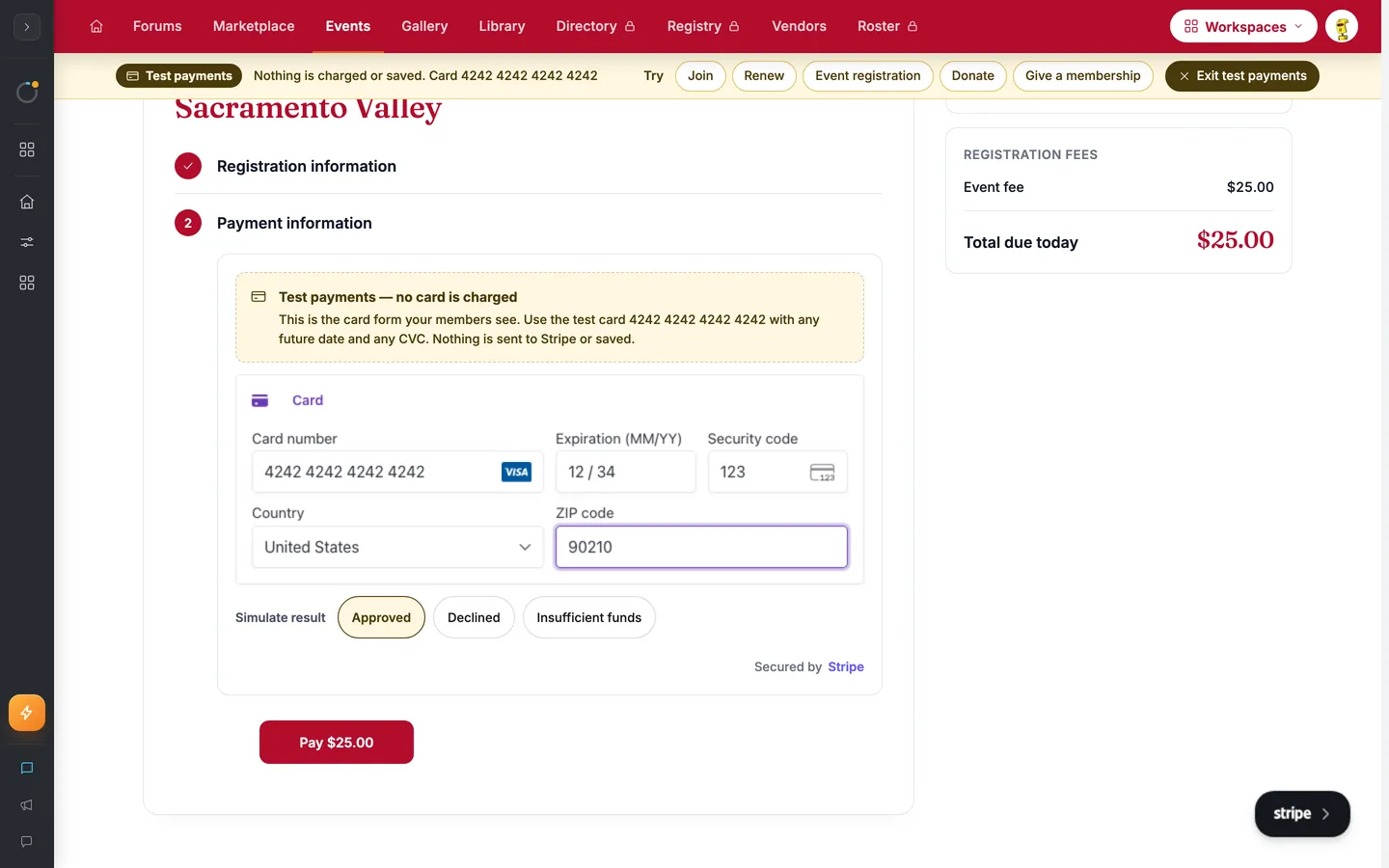
- Type the test card 4242 4242 4242 4242, any future date and any CVC.
- Under Simulate result, choose Approved, Declined or Insufficient funds.
- Click the pay button to see the result.
- When you're finished, click Exit test payments in the banner. On a narrower window or a phone the button reads Exit. The join steps fill the whole screen, so close them first.
The payment step is marked with a note that begins "Test payments — no card is charged". In the join steps, the note begins "Preview — no card is charged".
What happens next
Nothing you do in Test payments is kept. No one is charged, and no member, registration, donation or gift is saved. The results are worded as a test so you can tell:
- Join: you land on the member's Welcome screen. It's the real screen, so it mentions a confirmation email. The top of the page still says "Nothing is saved and no card is charged."
- Renewal or membership change: "Payment approved (test)", with a line that nothing was charged.
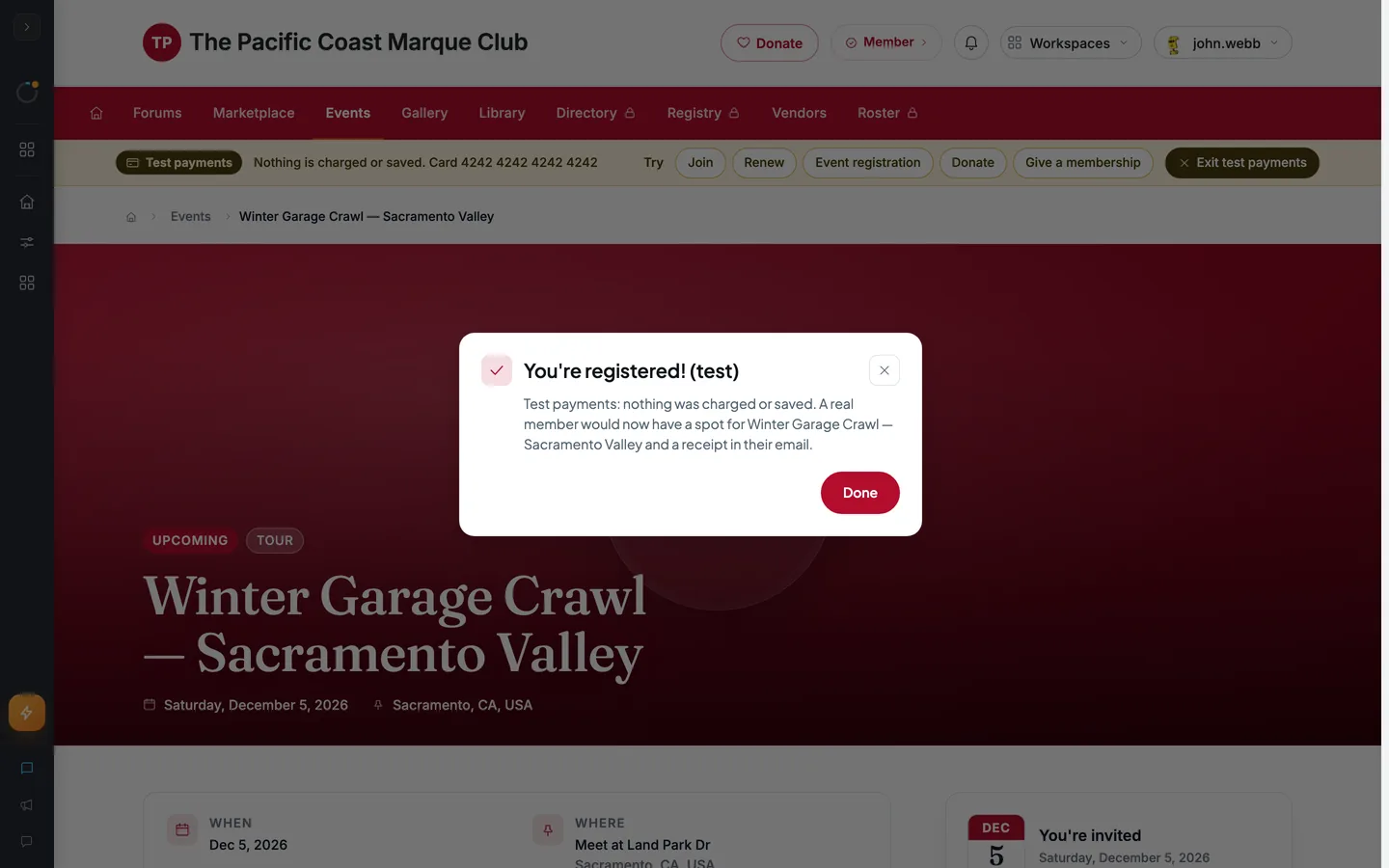
- Event: "You're registered! (test)". A free event has no payment step, and the result says nothing was saved.
- Donation: the thank-you page says "Test payments: nothing was charged." and "No email was sent."
- Gift membership: the result says nothing was charged or sent.
If you choose Declined, you see "Your card was declined. Try another card." If you choose Insufficient funds, you see "Your card has insufficient funds. Try another card." These are the messages a member gets.
When you exit, a message confirms "Test payments is off" and your admin tools come back. Opening a different club also turns Test payments off.
Fixing problems
"Nothing is saved while you're testing. Exit test payments to make changes." — While Test payments is on, the site won't save changes to your club, including edits to your pages or settings. Click Exit test payments, then make your change.
The pay button won't click. It stays off until the card number, date and CVC are all filled in. Use 4242 4242 4242 4242 with a date in the future.
The note says the card form couldn't load. The card form is skipped. You can still finish the steps, and nothing is charged.
"Nothing to pay today — a member's change is saved and billed with their renewal." — The choice you made on the membership page has nothing to pay right now, so there's no payment step to try. This happens when you set a membership change to start at your renewal.
There's no payment step. A free plan, a free event or a club that isn't collecting dues doesn't ask for a card, so there's no payment to test.
"Gift memberships aren't available right now" — Your club isn't offering gift memberships, so there's no gift payment to test.
You don't see Test payments anywhere. Make sure you're signed in and that you're an admin of this club. On a phone, look under Menu.
Your editing tools are gone. That's expected while the banner is showing. They come back when you exit.
Tips & tricks
- Try each result. Declined and Insufficient funds show you the exact message a member sees when their card doesn't go through.
- Already registered for one of your own events? In Test payments the event shows as not yet registered, so you can go through registration again.
- You can walk through giving a membership even if your own membership isn't active.
Frequently asked
Will my card be charged? No. Nothing is sent to Stripe, and nothing is charged or saved.
Do members see anything while I'm testing? No. Test payments is only on for you, in the browser tab where you turned it on.
Do I need Stripe connected first? No. You can walk through the payments without it. Each payment step reminds you that real members can't pay there until Stripe is connected.
Does a test create a member or a registration? No. Nothing is saved. The test results tell you what a real member would get, such as a receipt by email.