Build a custom form
A custom form is a standalone form you build in your club's Control Panel and share by its own link — a liability waiver, a volunteer sign-up, a show entry, a member survey, an RSVP. You choose the questions, publish the form, and every submission lands in one table you can search, open, and export to CSV. Each form gets its own web address on your club site, so you can put the link in a newsletter, an email, or a forum post.
Where to find it
Open your club's Control Panel (the chevron at the top-left of the club site, or ⌘\ on a Mac), click Features, scroll down to the Pages group, and click the pencil beside Custom Forms.
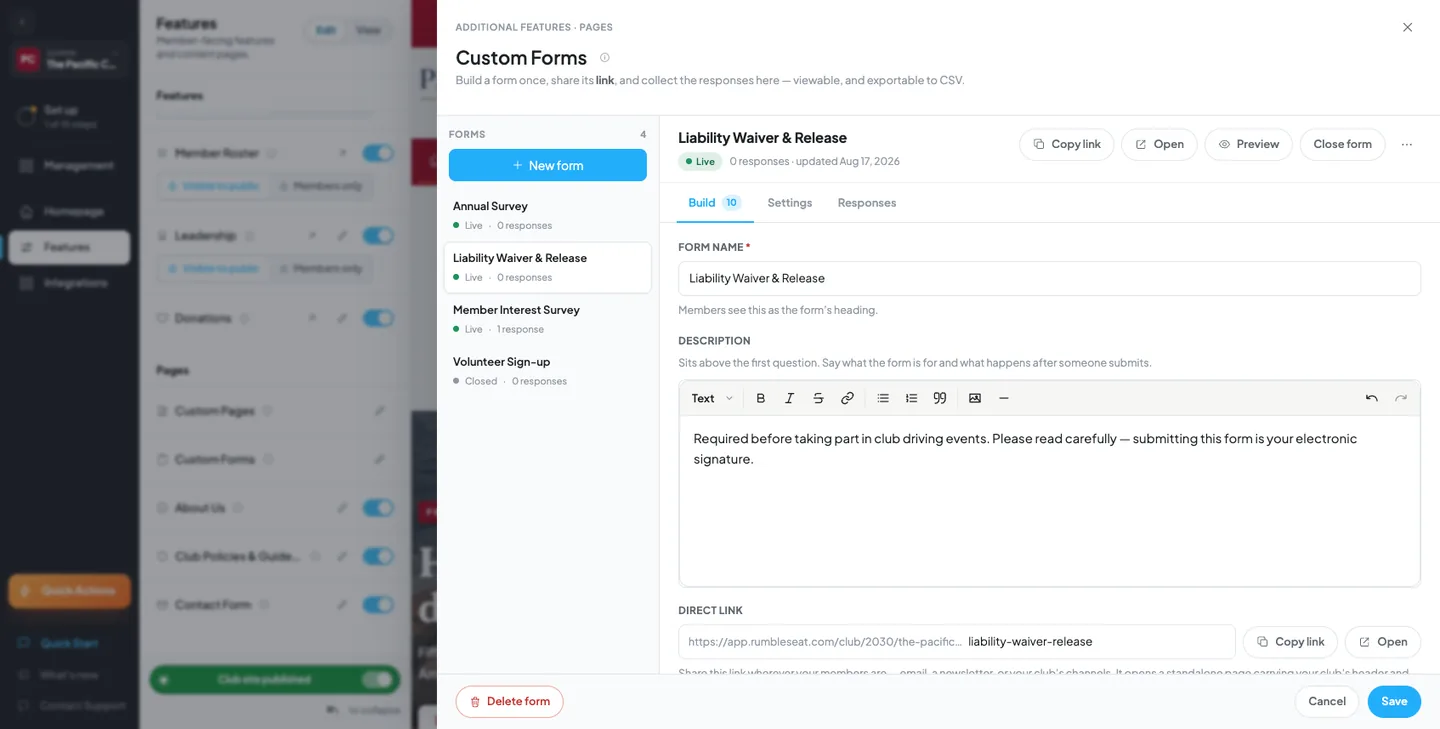
The panel that opens is the whole feature. Your forms are listed on the left with a status dot and a response count; the form you select fills the right side under three tabs — Build, Settings, and Responses. Once your club has more than five forms, a Filter forms box appears above the list.
Before you start
- You need to be a club owner, co-owner, or admin.
- Decide whether the form is for members only or anyone. Members-only forms attach the submitter's name, email, and membership automatically, so you don't have to ask for them.
- Write your questions down first if the form is long. Reordering is easy, but deciding what to ask while you build tends to produce forms with three different ways of asking for a phone number.
Build and publish a form
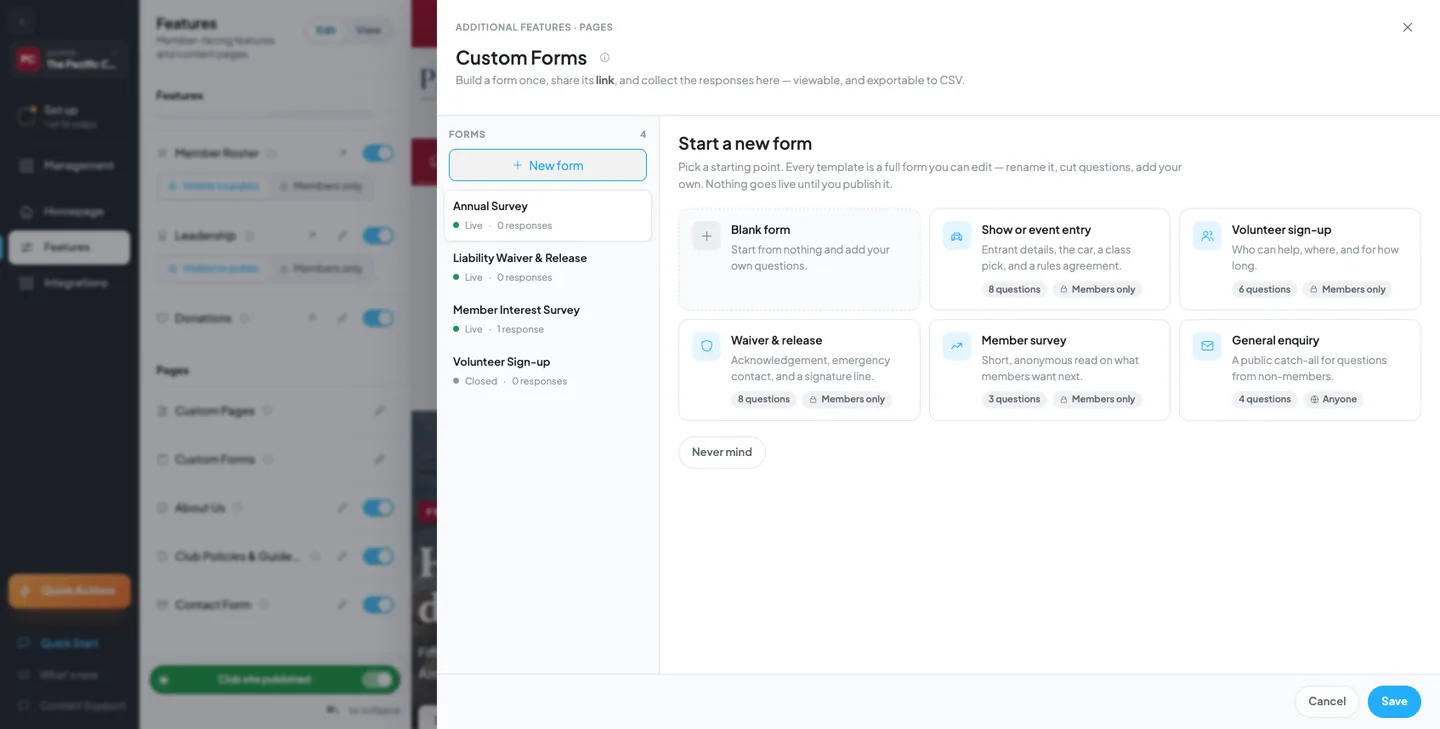
- Click New form and pick a starting point — a blank form, or one of five templates you can edit freely.
- Give the form a name. Members see this as the form's heading, and it is required before you can publish.
- Write a short description. It sits above the first question — say what the form is for and what happens after someone submits.
- Add your questions, choosing a format for each one and marking the ones members must answer.
- Open the Settings tab and set who can submit, whether to close the form on a date, and the message members see after submitting.
- Click Save, then Publish. Publishing makes the form reachable at its link; nothing is live until you do.
- Copy the form's direct link and share it wherever your members are.
Start from a template
New form offers six starting points: a blank form, show or event entry, volunteer sign-up, waiver & release, member survey, and general enquiry. Every template is a complete form — questions, description, and settings already filled in — and everything in it is yours to change. Rename it, cut questions you don't need, add your own. Nothing goes live until you publish it, so opening a template costs you nothing.
The templates are the fastest way to see how the formats are meant to be combined. The waiver template, for example, pairs a consent checkbox with an emergency-contact section, which is the shape most clubs end up needing anyway.
The question formats
Each question has a format, a label, optional help text, and a required switch. There are thirteen formats:
- Short text — one line, for names, car models, and short answers.
- Long text — a multi-line paragraph answer.
- Email — a validated email address.
- Phone — a phone number.
- Number — a numeric answer: a year, a count, mileage.
- Date — a date, chosen from a picker.
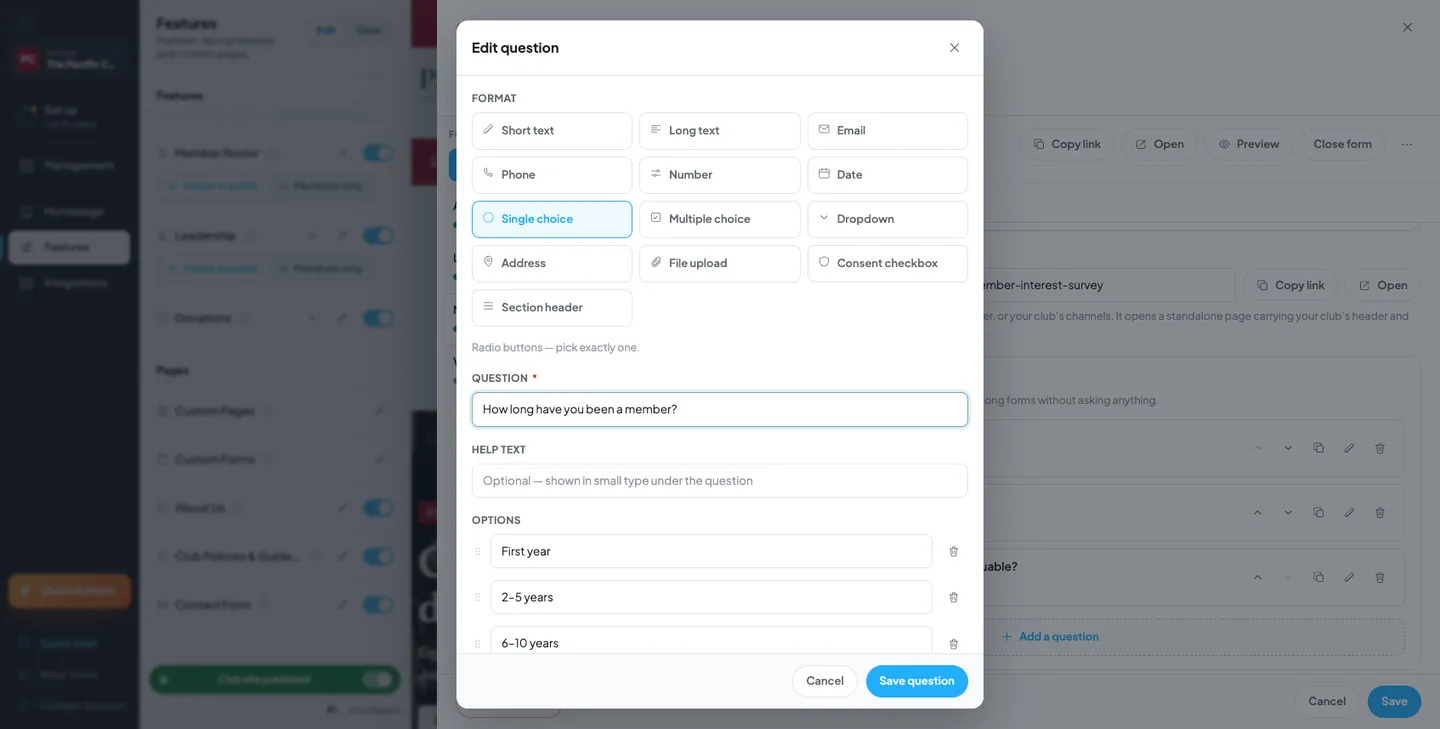
- Single choice — radio buttons; members pick exactly one.
- Multiple choice — checkboxes; members pick any number.
- Dropdown — a compact list, better than radio buttons once you pass six options.
- Address — a street, city, state, and ZIP block.
- File upload — one attachment, such as a photo, a PDF, or a document.
- Consent checkbox — a single "I agree" box, for waivers and terms.
- Section header — not a question; a heading that groups the fields below it.
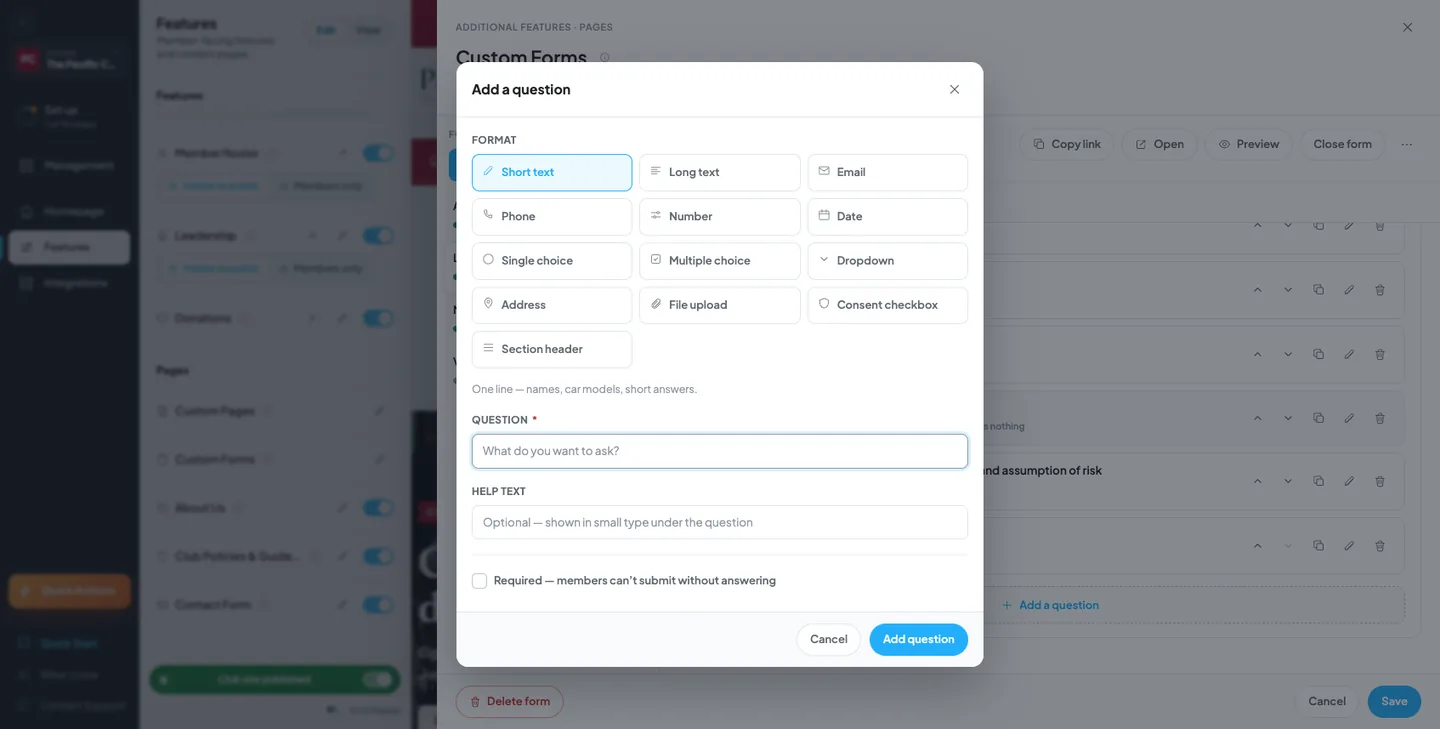
Single choice, multiple choice, and dropdown need at least two options before the question will save. Help text is optional and appears in small type under the question — it's the right place for "day-of contact only" or "we'll send your confirmation here."
Section headers group a long form
A section header collects nothing. It prints a heading in the form so a long list of questions reads as About you, Your car, Emergency contact instead of one unbroken wall.
Because it asks nothing, a section header is left out of the question count, out of every response, and out of the CSV. That's why the Questions card can say 8 asked while the form contains ten rows — two of them are headers.
Reorder, duplicate, and remove questions
Every question row has a drag handle and a set of controls: move up, move down, duplicate question, edit question, and remove question. Drag to reorder, or use the arrows if you'd rather not drag.
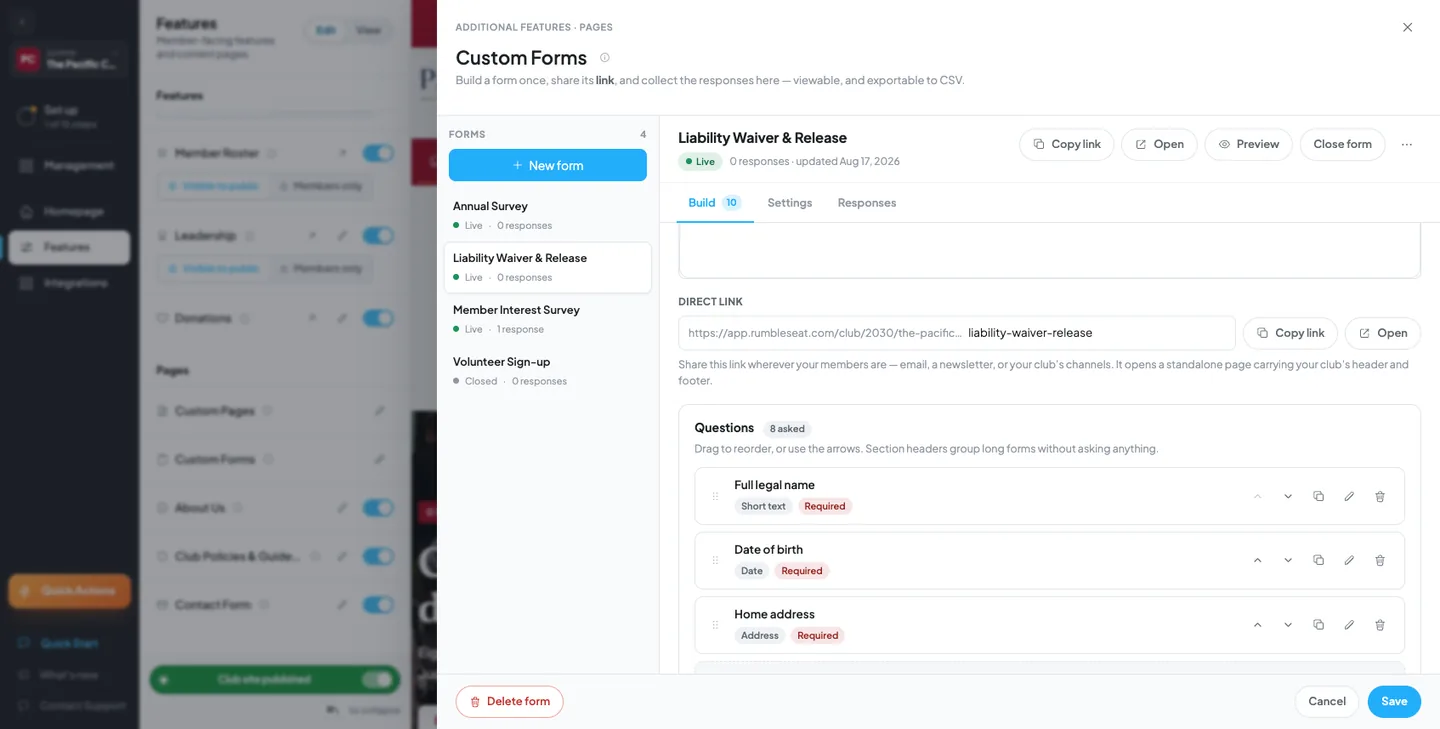
Duplicating is the shortcut for a run of similar questions — build one Vehicle 1 block, duplicate it twice, and edit the labels.
The form's direct link
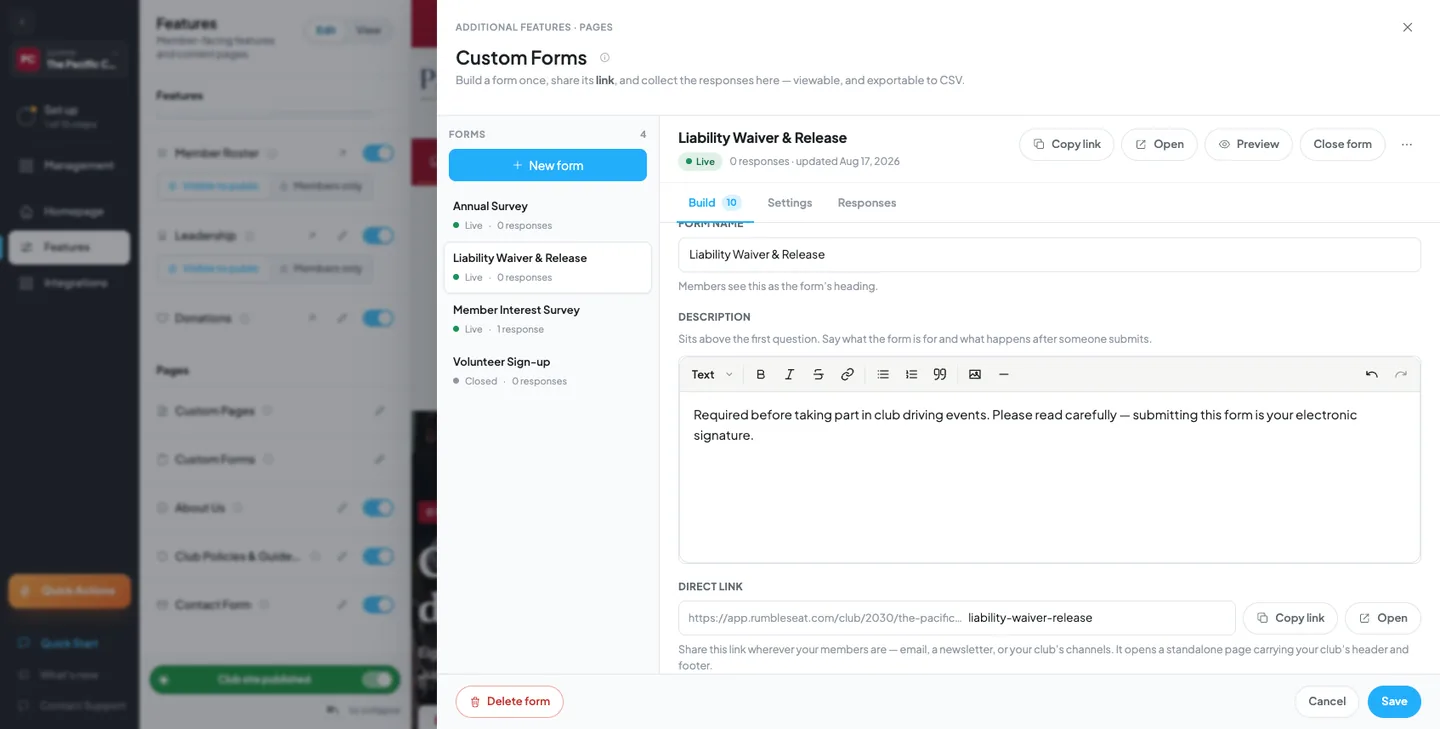
Each form has its own address, made from a slug you control on the Build tab. Copy link puts it on your clipboard, and Open loads the live form in a new tab. The page it opens is a standalone page carrying your club's header and footer, so it looks like the rest of your site.
This link is how members reach a form. Share it in a newsletter, an email, a forum post, or your club's channels. You can change the slug while the form is a draft; changing it after you've shared the link will break the link you sent.
Settings
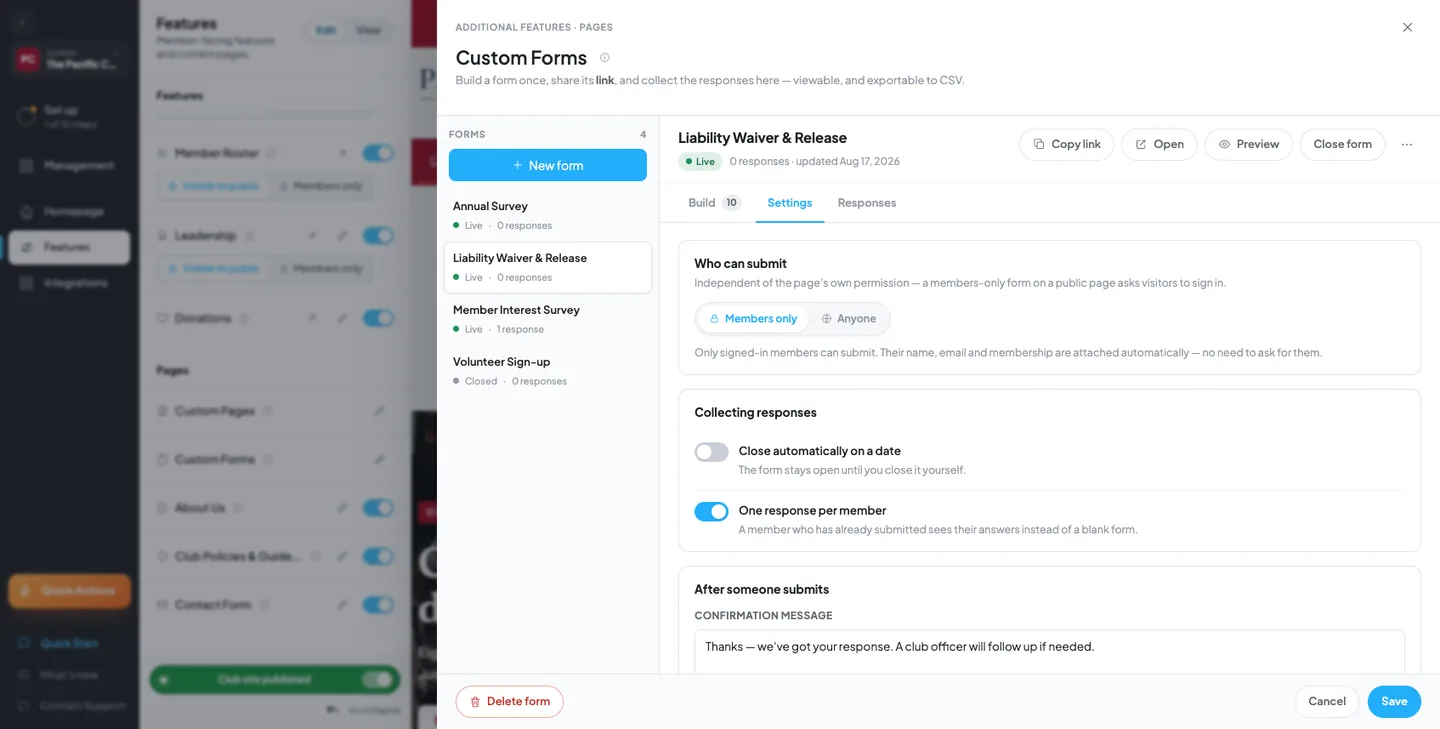
The Settings tab has three groups.
Who can submit — Members only or Anyone. This is the form's own rule, independent of anything else: a members-only form asks a signed-out visitor to sign in before they can fill it out. On a members-only form the submitter's name, email, and membership come across automatically.
Collecting responses — Close automatically on a date sets an end date; leave it off and the form stays open until you close it yourself. One response per member limits members to a single submission, and a member who has already submitted sees their own answers instead of a blank form.
After someone submits — the confirmation message replaces the form on screen once it's submitted. Use it to say what happens next: who follows up, when the schedule goes out, where to send the check.
Publish, close, and re-open
A form is in one of three states, shown beside its name and in the list on the left:
- Draft — not reachable by members. Only you can see it, through Preview.
- Live — reachable at its link and accepting responses.
- Closed — no longer accepting responses. A member who opens the link is told the form isn't open and to contact a club officer if that looks wrong.
Publish needs two things: a form name and at least one question. If either is missing, the button stays inactive and the panel tells you which one to fix. Close form stops new submissions without deleting anything, and Re-open puts a closed form back to live — useful for a waiver you re-run every season. Move back to draft, under the ⋯ menu, pulls a form offline altogether.
Preview shows you the form exactly as a member sees it, at any status, without publishing it.
Read responses
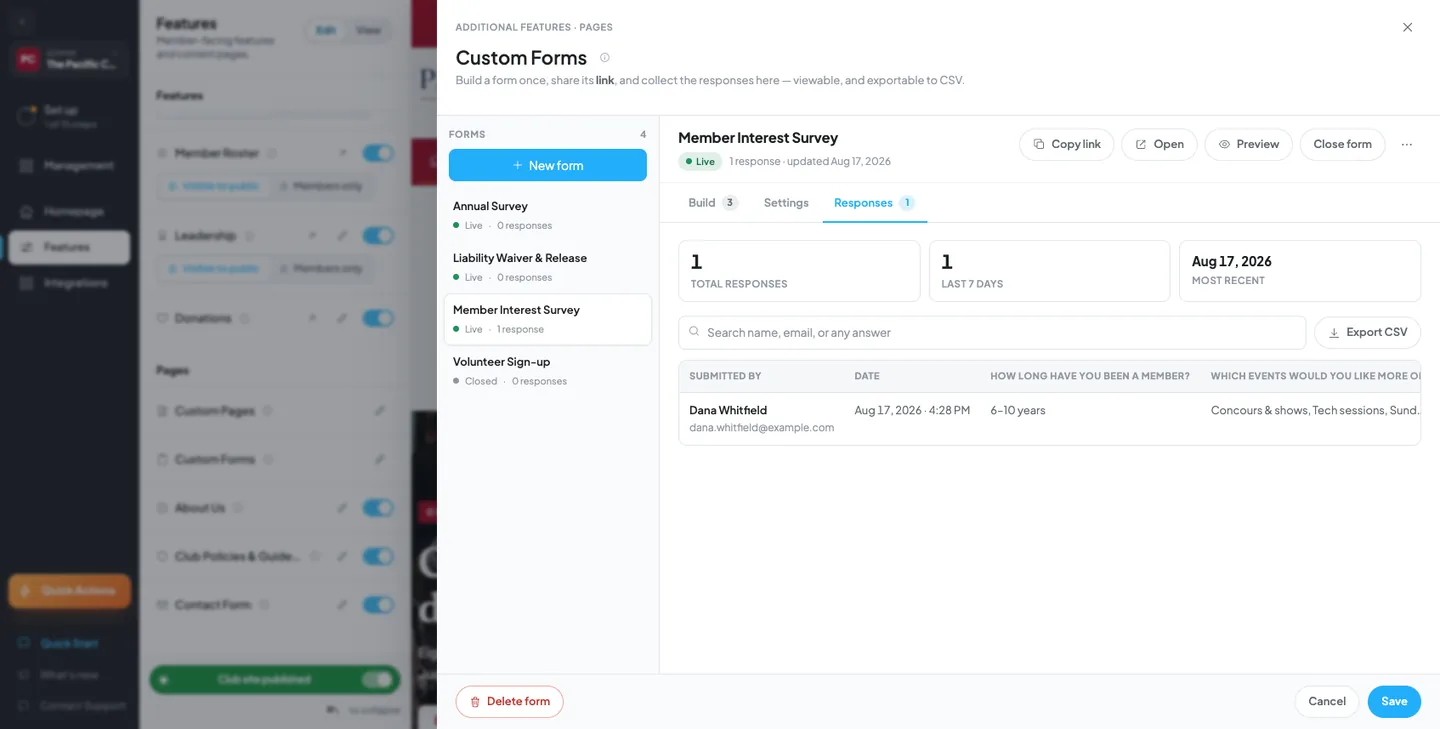
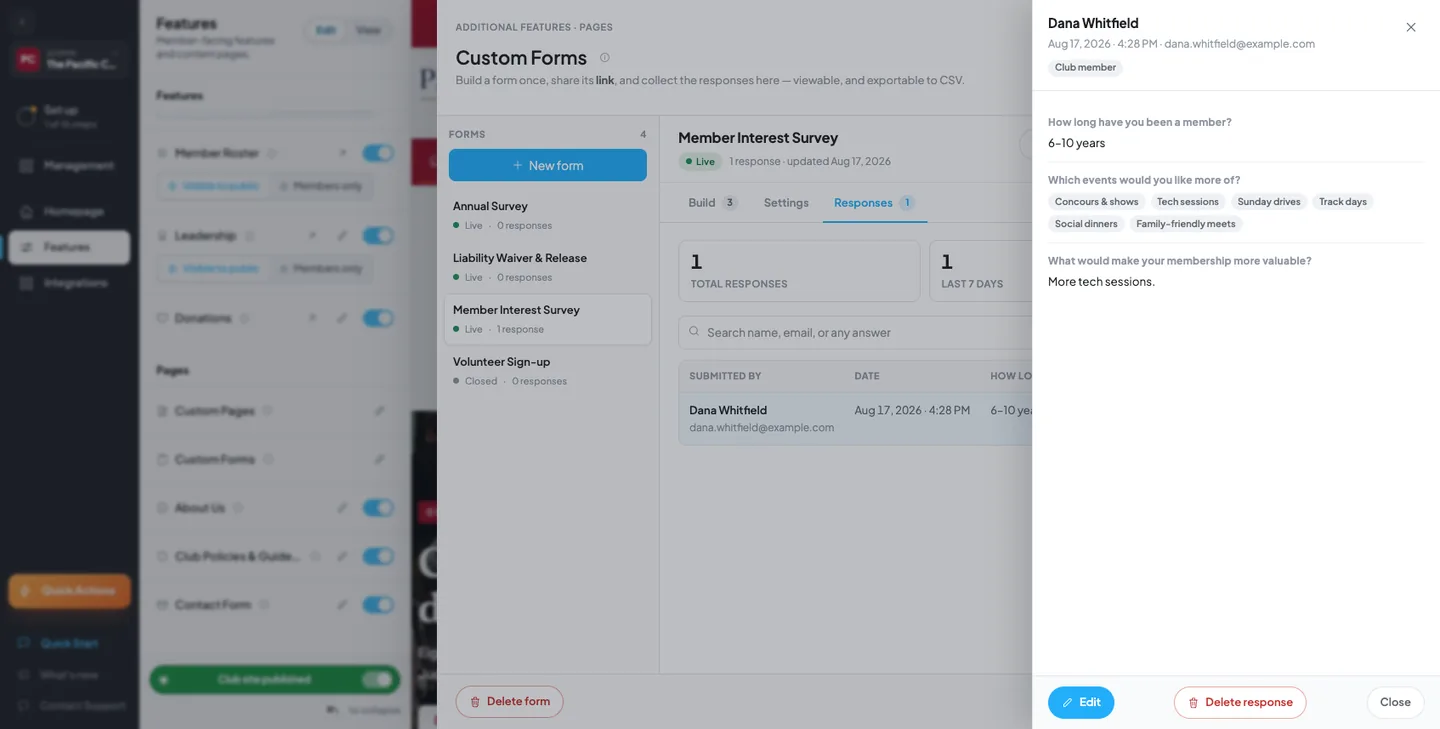
The Responses tab loads when you open it. Three figures sit across the top — total responses, last 7 days, and most recent — above a table with the newest submission first.
Search the table by name, email, or any answer. The table shows the first several question columns and tells you when there are more; open any row for the full response, or export the CSV to get every column.
Opening a row slides out the full response: who submitted it, when, whether they were a club member, and every question with its answer. Uploaded files can be viewed or downloaded from here. You can correct an answer from this panel, and you can delete the response — deleting is permanent, so export first if the data matters.
Export to CSV
There are two ways out to a spreadsheet: Export CSV on the Responses tab, and Export responses under the ⋯ menu beside the form's name. The menu item reads No responses to export until the first one arrives.
One useful difference: the button on the Responses tab respects whatever you've searched for. Filter the table to one event or one name and the button becomes Export CSV (12) — you get those twelve rows, not all of them.
Columns are Submitted, Name, Email, and Member, then one column per question. Two details worth knowing:
- If you deleted a question that older responses had already answered, its column is still exported, labelled (removed). Deleting a question never silently drops data members already gave you.
- A file-upload answer exports as a link to the file, so the spreadsheet stays clickable.
Editing a form that already has responses
You can keep editing a live form, and existing responses are not rewritten when you do. Each response stores the questions as they were asked at the moment it was submitted, so a response collected in March still reads correctly after you reword a question in June.
That's also why the CSV can carry columns your current form no longer has.
Duplicate a form
Duplicate form is under the ⋯ menu. It copies the questions and settings into a new draft and leaves the responses behind. This is how a yearly form should be handled: duplicate last season's waiver, change the dates, publish. The old form keeps its responses as a record.
Delete a form
Delete form sits at the bottom-left of the panel and asks for confirmation. If the form has responses, the confirmation offers to export first — take it, because deleting a form takes its responses with it. Closing a form is almost always the better move when you just want submissions to stop.
What members see
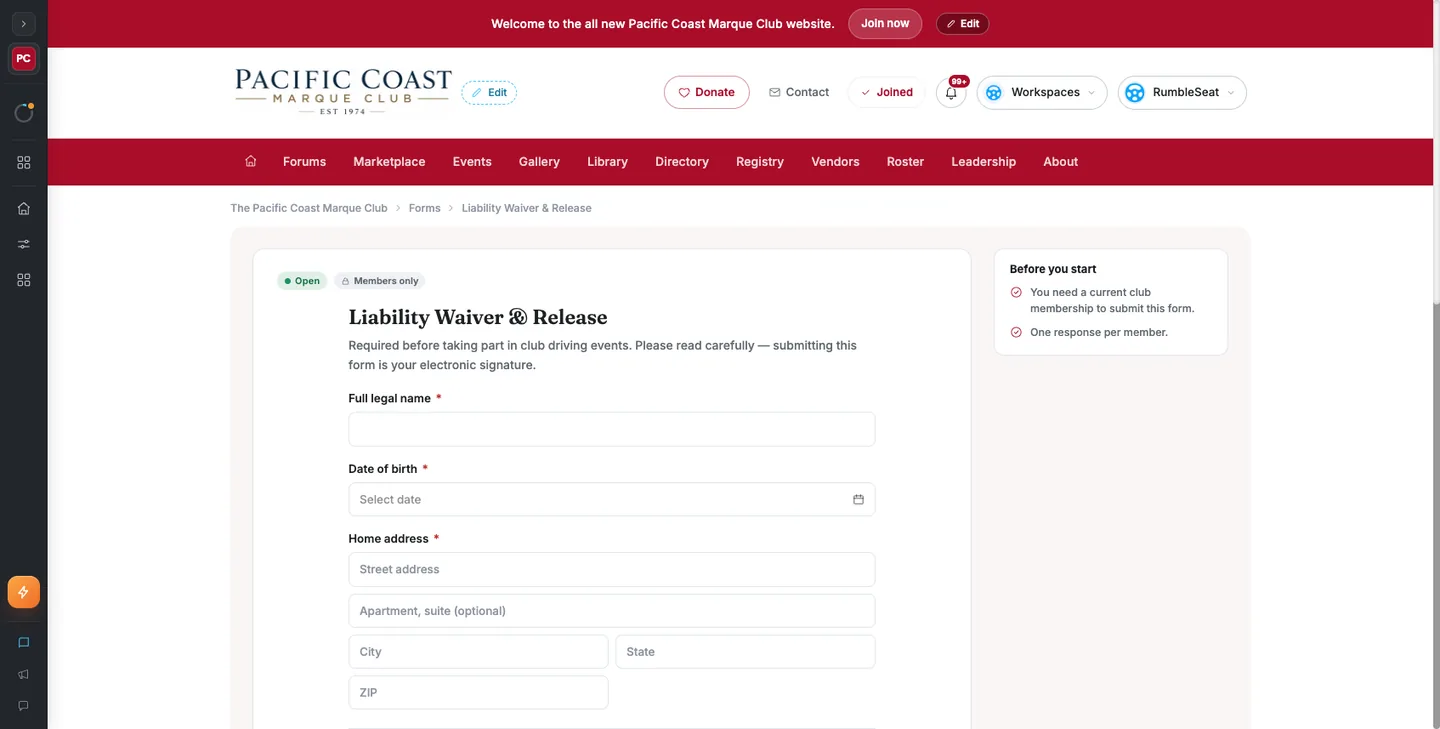
A member who opens the link gets a page with your club's header and footer, the form's name and description, a status pill, and the questions in order. A short Before you start panel tells them what the form expects — that it needs a current membership, or that it takes one response per member.
Required questions are marked, and the form won't submit until they're answered. After submitting, the confirmation message replaces the form. If the form is members-only and they aren't signed in, they're asked to sign in first; if the form is closed, they're told so.
Tips & tricks
- Start with the waiver for your next event. It's the form that saves the most time on the day, and the one your insurer is most likely to ask about.
- A consent checkbox records who accepted and when. That timestamped record is the thing an email saying "sounds good" can never be.
- Set the slug before you share the link, not after.
- Put the deadline in the description and set Close automatically on a date to match, so the form can't take an entry after the field is full.
- Use Preview before you publish. Reading your own form as a member catches the question that made sense only to you.
Frequently asked
Can I put a form on a page of my club site? Not yet. Custom forms are standalone pages today, and members reach them by the form's direct link — which you can put in a newsletter, an email, a forum post, or anywhere else you'd put a link.
Does anyone get emailed when a response arrives? No. New responses appear in the Responses tab, and the response count on the forms list tells you when something new has come in without opening the form.
Can non-members submit? Yes, if you set Who can submit to Anyone. Their submission is marked as a non-member in the table and in the CSV.
Can a member change their answer? Not from their side. An admin can correct an answer from the response panel on the Responses tab.
What happens to responses if I edit the form? Nothing. Each response keeps the questions as they were asked when it was submitted.
Can I have more than one form open at a time? Yes. There's no limit on the number of forms, and each has its own link, settings, and responses.
Who can see the responses? Officers with admin access to the club. Responses belong to the club, not to whoever built the form — so when officers change, the data stays.
Can I reuse last year's form? Duplicate it. The copy starts as a draft with the same questions and settings, and the original keeps its responses.