Create and manage custom pages
Custom pages are extra pages you write yourself and host on your club website, such as By-Laws or a Sponsor Spotlight. Use them for content that does not fit the built-in sections. For a layout built from ready-made sections, start from a custom page and use the page builder, covered in Build a page with the page builder.
Before you begin
- Who can do this: a full club admin, or a delegated role with the Site Manager capability. Roles limited to events, finance, forum or messaging cannot open the editor, and reports-only viewers cannot either. If you lack access, the pencil icon and the Edit page button are hidden.
- Nothing needs to be set up first. Custom Pages has no on/off switch and no plan requirement.
- New pages are not added to your site menu automatically. You add them in Site Navigation, see Customize your club website.
Step-by-step
Open the editor
- Open the Admin Control Panel.
- Click Features in the left rail.
- Under Pages, find Custom Pages and click the pencil icon (Edit Custom Pages).
- You see the list titled Pages with a count, or No custom pages yet. if you have none.
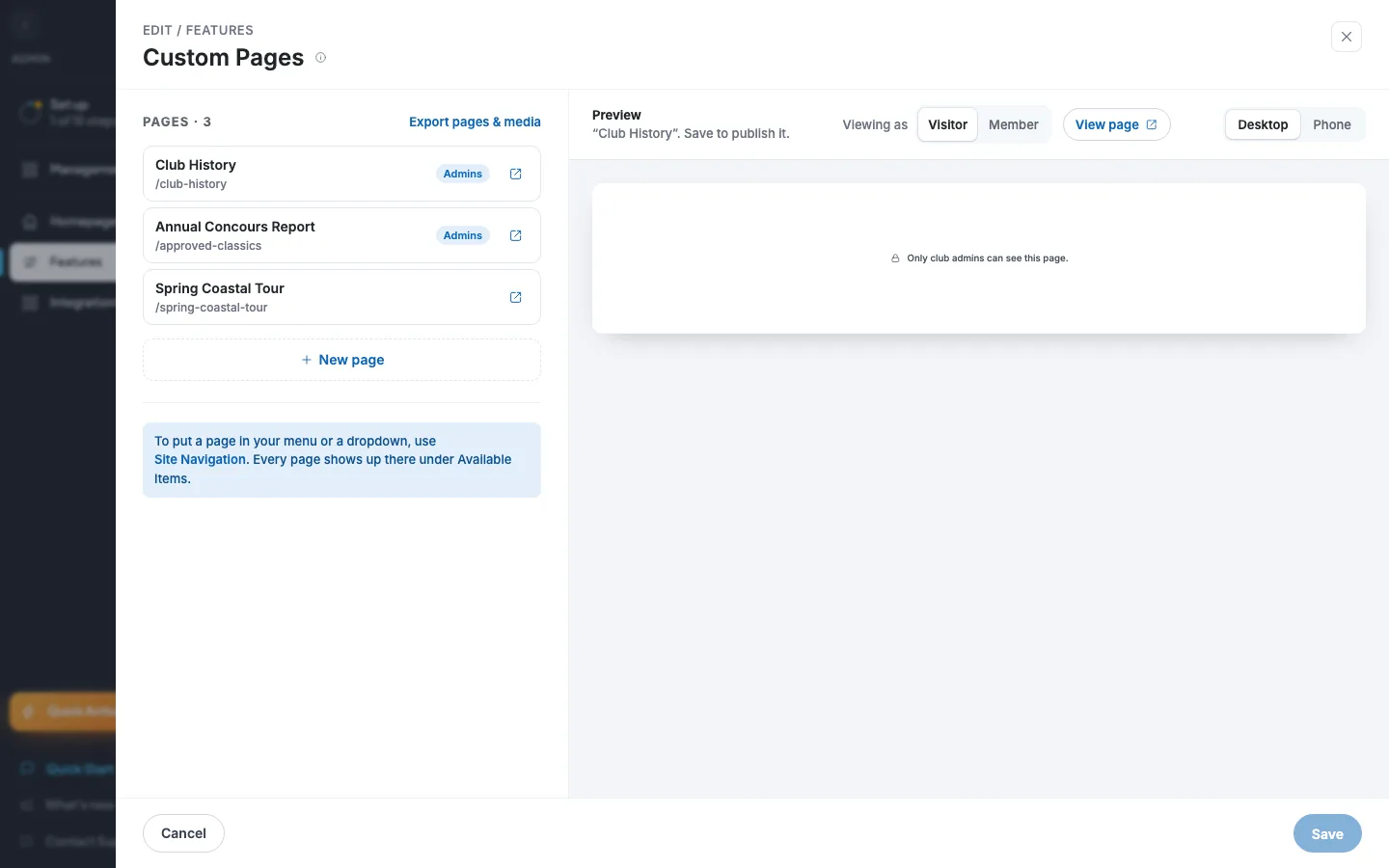
You can also open a page's editor from the live page: click Edit page or Page settings on the admin bar at the top of that page.
Add and write a page
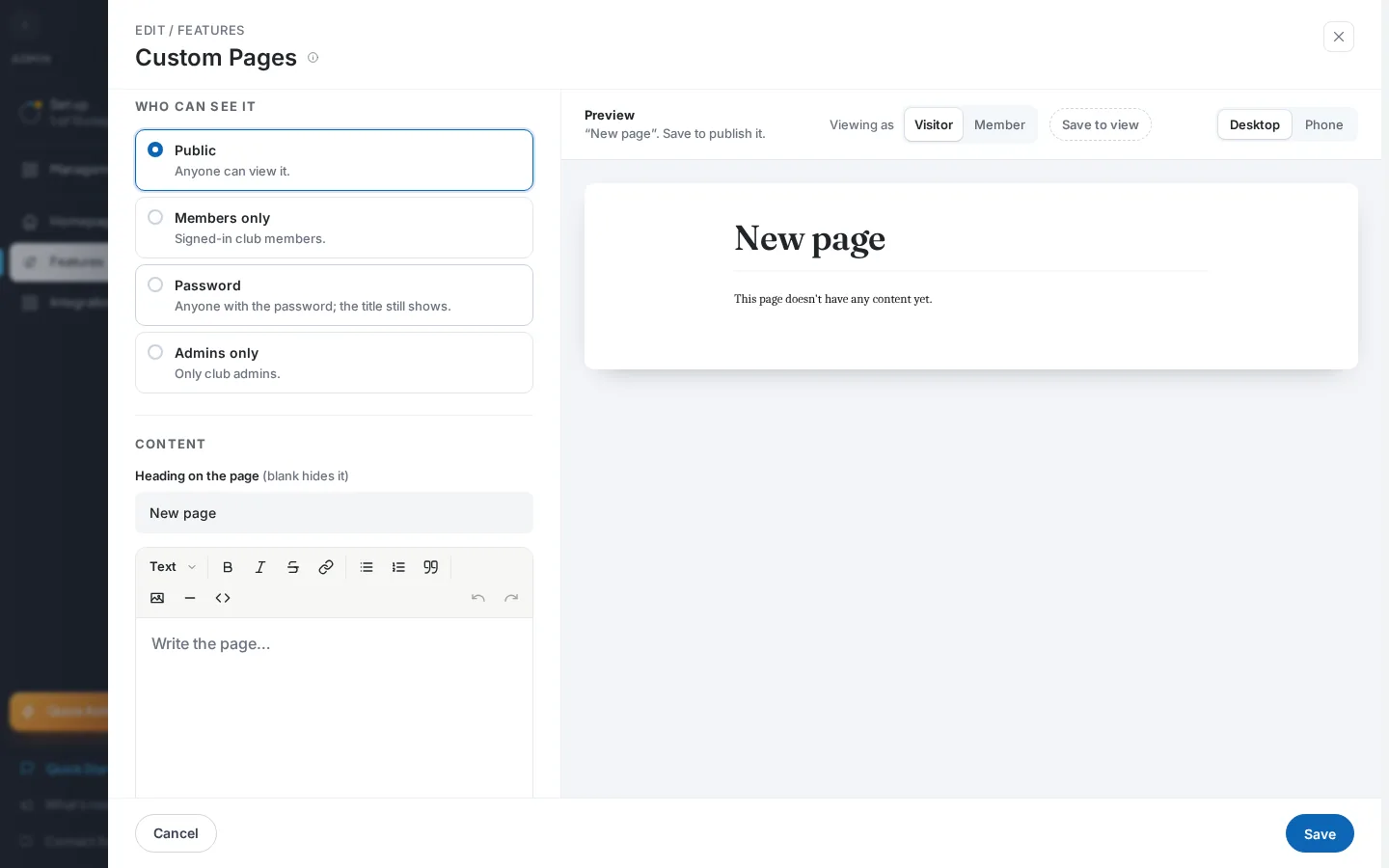
- Click New page. A row appears and opens with the title New page.
- Type a Page title. The Page address follows it until you edit the address yourself.
- Under Who can see it, pick Public, Members only, Password or Admins only.
- Leave Heading on the page as is, or change it. Clear it to hide the heading.
- Write your page in the Content editor.
- Optionally add a button under Buttons with Add a main button. Enter a Button name, choose When clicked, and set the link.
- Click Save. You see the toast Custom pages saved.
Check it before you publish
- Look at the Preview pane. Switch Viewing as between Visitor and Member to see each version.
- Use Desktop and Phone to check both sizes.
- After saving, click View page ↗ to open the live page in a new tab.
Edit or delete a page
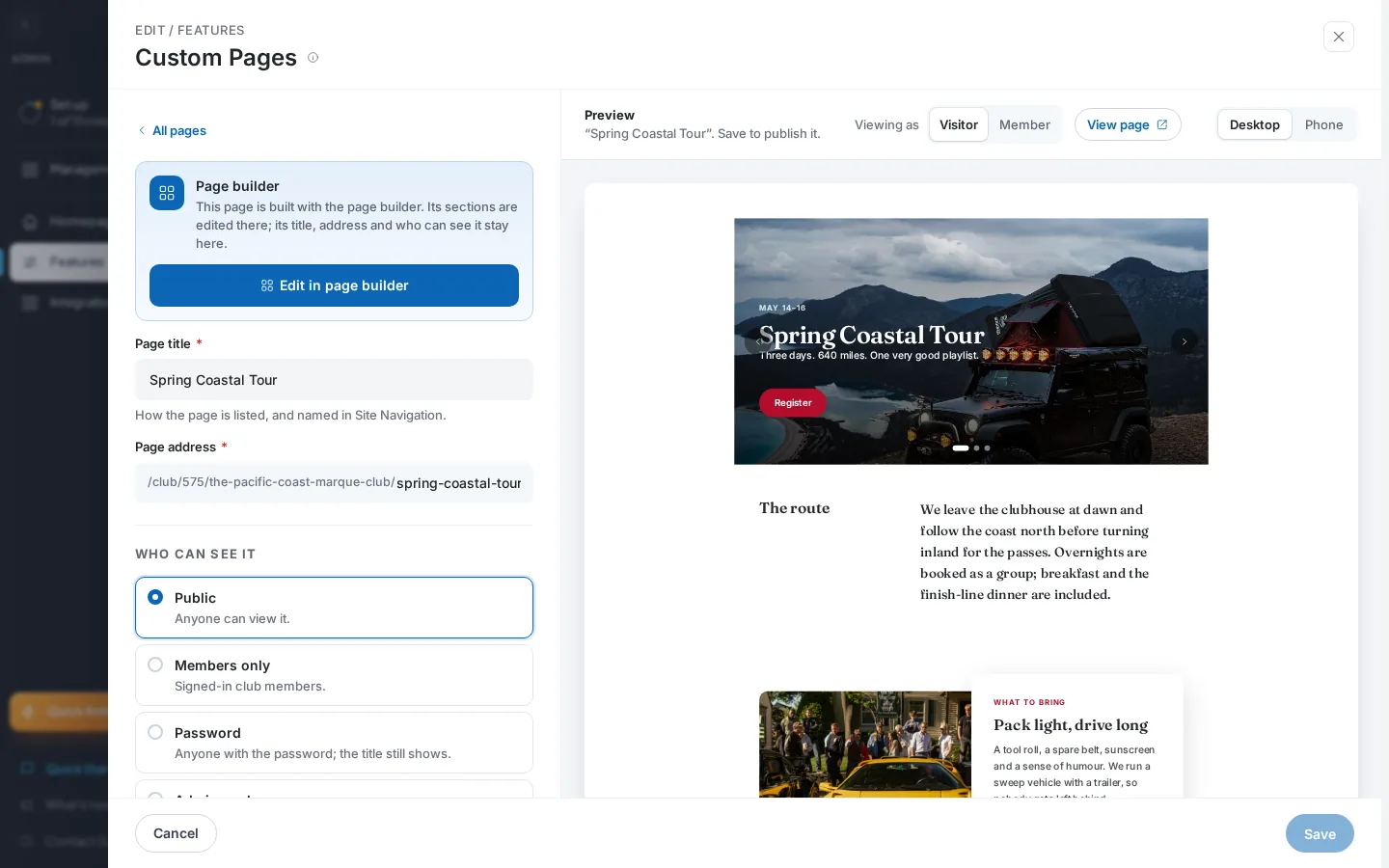
- In the list, click the page's row. Change what you need.
- Click Save.
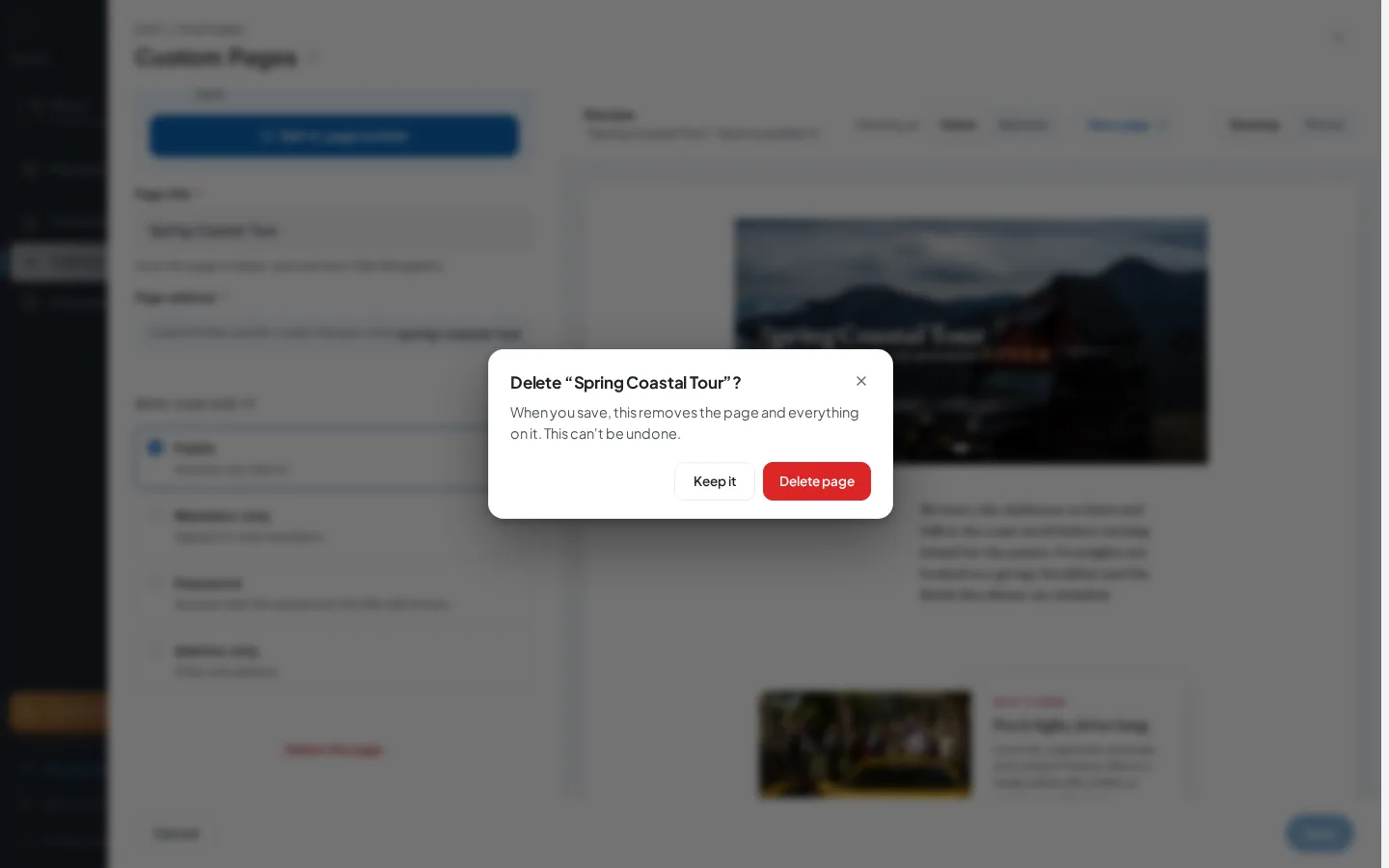
- To remove a page, open it and click Delete this page, then Delete page in the confirmation.
- Click Save. The page is only removed when you save.
Use the page builder instead
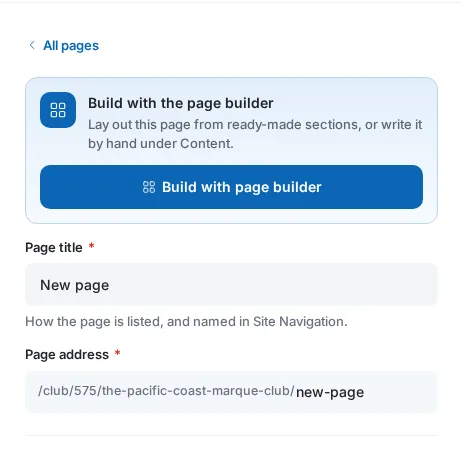
- Open the page. At the top, the card says Build with the page builder on an empty page, or Rebuild with page builder on a page with content.
- Click Build with page builder. The page is created at once and kept Admins only until your first publish in the builder.
- Design and publish in the builder. Click Page settings inside the builder to return to this form.
Field reference
| Field | Required | Format / limits | Notes |
|---|---|---|---|
| Page title | Yes | Text, up to 100 characters | New pages start as "New page". A blank title shows Needs info on the row. |
| Page address | Yes | Up to 50 characters. Lowercase letters, numbers and hyphens only | Typing converts other characters to hyphens. Must be unique among your pages. terms-of-use and privacy-policy are reserved. Follows the title until you edit it by hand. |
| Who can see it | Yes | Public, Members only, Password, Admins only | Default is Public. Public: anyone. Members only: signed-in club members. Password: anyone with the password, and the title still shows. Admins only: club admins. |
| Password | Yes, when Password is chosen | At least 4 characters, shown as plain text | One password for everyone. Changing it locks out anyone with the old one. |
| Heading on the page (blank hides it) | No | Text | Follows the title until you type a different heading. |
| Content | No | Rich text: text styles, bold, italic, strikethrough, link, lists, quote, image, horizontal rule, HTML embed, undo, redo | Placeholder "Write the page…". Inserting an image asks for alt text. Hidden on pages made with the page builder. |
| Button name | No | Text, for each of two buttons | The first is a filled main button, the second an outline button. A button needs both a name and a link, or it is dropped on save. |
| When clicked | No | A page on this site or Another website | Default is a page on this site. |
| Link / Link (URL) | No | A page picked from Pick a page or section…, or typed such as /events. For another website, a full address such as https://example.com | External addresses are tidied up when you leave the field. |
| Published state | Automatic | Not shown in the editor | New pages are published. There is no Draft switch. |
| Menu name | Automatic | Not shown in the editor | Kept equal to the title only if the page already had a menu entry. |
| Heading marker | Automatic | Stored with the page | Records a custom heading, so renames keep working. |
| Privacy and search visibility | Automatic | Set from Who can see it | Search results follow the same audience. |
| Page builder sections | Automatic | Written only when you publish in the builder | See Build a page with the page builder. |
What happens next
- Save runs deletions first, then each new or edited page in list order. It stops at the first failure and leaves the rest unsaved, with their New or Edited tags. Saving again retries only what is left.
- The live page appears at your site address followed by the page address. If an existing menu entry points to a page whose address you changed, it is updated. A deleted page's menu entry is removed.
- Row tags: Members, Password, Admins, New, Edited, Needs info. The external-link icon on a saved row opens the live page.
- Export pages & media downloads an Excel file named like club-name-custom-pages-2025-01-31.xlsx with a Pages and a Media sheet. You see Export ready. Passwords are never exported.
- No emails or notifications are sent.
Fixing problems
"A page needs a title." The title is blank. Type a title.
"A page needs an address." The address is empty. Type one, or retype the title.
"/terms-of-use" is reserved for the RumbleSeat Terms of Use. and "/privacy-policy" is reserved for the RumbleSeat Privacy Policy. Those two addresses belong to RumbleSeat. Choose a different address.
"Another page already uses this address." Two pages share an address. Change one.
"Add a password, or choose who can see it another way." and "Use at least 4 characters." Password is chosen but the password is empty or short. Enter four or more characters, or pick another audience.
"Add a button name to show this button." and "Add a link to show this button." The button is incomplete, so it is dropped on save. Fill in both.
"Couldn't load your pages" with "Close the editor and try again." The page list did not load. Close the editor and reopen it.
"Club context missing — please reload." The editor lost track of your club. Reload the page.
"Couldn't save" followed by the page title in quotes, or "Couldn't delete" followed by the title. One step failed and later steps did not run. The message gives the reason, or "Your other unsaved changes are still here." Fix the cause and click Save again.
Reasons you may see under those titles:
"Server returned an unexpected response.", "Server returned an error." and "Something went wrong on our end. Please try again." These are server-side hiccups. Save again in a moment.
"We couldn't reach the server. Check your connection and try again." Your connection dropped. Reconnect and save again.
"That request couldn't be completed." The server refused the request without details. Check the page's fields, then try again.
"/terms-of-use" is reserved for the RumbleSeat Terms of Use. Choose a different page address. The reserved-address rule was caught while saving. Change the address.
"Couldn’t save navigation" with "Your changes weren't saved. Please try again." The page saved, but the menu entry did not update. Try again, or fix it in Site Navigation.
"Couldn't export your pages" with "Please try again in a moment." The export failed. Click Export pages & media again.
"Finish the page settings first" with "Give the page a title and an address, then build it." A new page needs both before the builder opens. Fill them in, then click Build with page builder.
"Couldn't create the page" with "Check your connection and try again." The builder could not create the page. Reconnect and try again. A save failure here instead shows "Couldn't save" plus the title, with "Try again." or the server's reason.
"The page builder couldn't load. Check your connection and try again." The builder did not load. Click Back to page settings, then retry.
"Published, but only club admins can see it" with "Who can see it wasn't saved. Go to Page settings and press Save to try again." The page published but your audience choice did not stick. Go to Page settings, choose the audience, and click Save.
"Couldn't switch back" with one of these reasons:
- "The page wasn't switched back. Check your connection and try again." Reconnect and retry.
- "This page was created in the page builder, so there's no classic version to switch back to." Nothing to restore. Keep editing in the builder.
- "You don't have permission to publish this page. Sign in again, or ask a club admin." Sign in again, or ask an admin.
- "This page no longer exists. It may have been deleted." Close the editor and reload the list.
- "This page is too large to publish. Remove some sections and try again." Remove sections in the builder.
Builder publish messages show inside the builder and are covered in Build a page with the page builder: "Add at least one section before publishing.", "A page can have up to 100 sections. Remove some and try again.", "Section 3 (Text) couldn't be saved as it is. Change or remove it and try again.", "Your changes weren't published. Check your connection and try again." and "Couldn't load this page. Check your connection and try again."
"Discard unpublished changes?" This dialog appears when you leave the page builder with edits you have not published. Your edits to the page have not been published, and visitors keep seeing the last published version. Click Discard changes to drop them or Keep editing to stay.
"Kept admins-only while it's empty. Build it with the page builder: its first Publish asks who can see it." This note sits under Who can see it on a new page you started building. Publish in the builder and answer its question to open the page up.
Save is greyed out. Nothing has changed, a load or save is running, or a row shows Needs info. Fix that row.
The editor will not close. It is blocked while saving. Wait, then close.
Messages only some people see
"“Page title” saved" with "2 of 3 images couldn't be uploaded. Try adding them again." The page saved, but some pasted images failed and were removed. Add them again. The title and counts in your message are your own.
Tips & tricks
- Pick the audience before you share the link. Password pages still show their title in the menu, so people know to ask.
- Changing the address of a page breaks old links to it. Menu entries update, links elsewhere do not.
- Pages hidden from visitors show a gate in Preview: switch Viewing as to check.
- Click Export pages & media before big edits for a backup of your page HTML.
Frequently asked
Can I draft a page before it goes live? There is no Draft switch. Set Who can see it to Admins only while you work, then change it when you are ready.
Why is my new page not in the menu? Menu membership lives in Site Navigation. Every page appears there under Available Items.
Does deleting remove the page right away? No. It disappears when you click Save. Closing without saving asks "You have unsaved changes" and offers Discard or Keep editing.
Can I go back from the page builder to a classic page? Yes, if a classic body exists underneath. Click Switch back to classic page and confirm with Switch back. The builder version is removed.