Build a page with the page builder
The page builder lets you lay out a custom page on your club site from ready-made sections, such as a hero banner, upcoming events, a FAQ or a map, instead of writing the page by hand. Use it for pages like About the Club, Track Day or Sponsors. For a plain text page with a heading and up to two buttons, the classic editor in Custom Pages is quicker.
Before you begin
- Who can do this: full club admins and members with the Site Manager role. Moderators, Organizers, Treasurers and Messengers can't open the editor.
- Use a tablet or computer. On a phone (768 px wide or less) the builder is view-only and shows Preview only on phones.
- Know the page title and address you want. The address becomes part of the page's web link, and you can add the page to your menu afterward in Site Navigation.
- Live sections pull from your club data: events, officers, membership plans, featured registry cars, marketplace listings, posts, forms, social links and gallery folders. Set those up first, or the section shows an empty note. A Form section needs a published form from Custom Forms.
- Time: about 15 to 30 minutes for a first page built from a template.
Step-by-step
Start the page
- Open the Admin Control Panel, click the Features tab, find the Pages group and click the pencil on Custom Pages.
- Click New page. The new page opens in the settings form.
- Fill in Page title and Page address, and pick Who can see it.
- Click Build with page builder. The page is saved as Admins only and the builder opens.
- On an empty page, click a template card to start from it, or click Browse all 15 templates to preview each one and click Use template. To start from nothing, click Blank page.
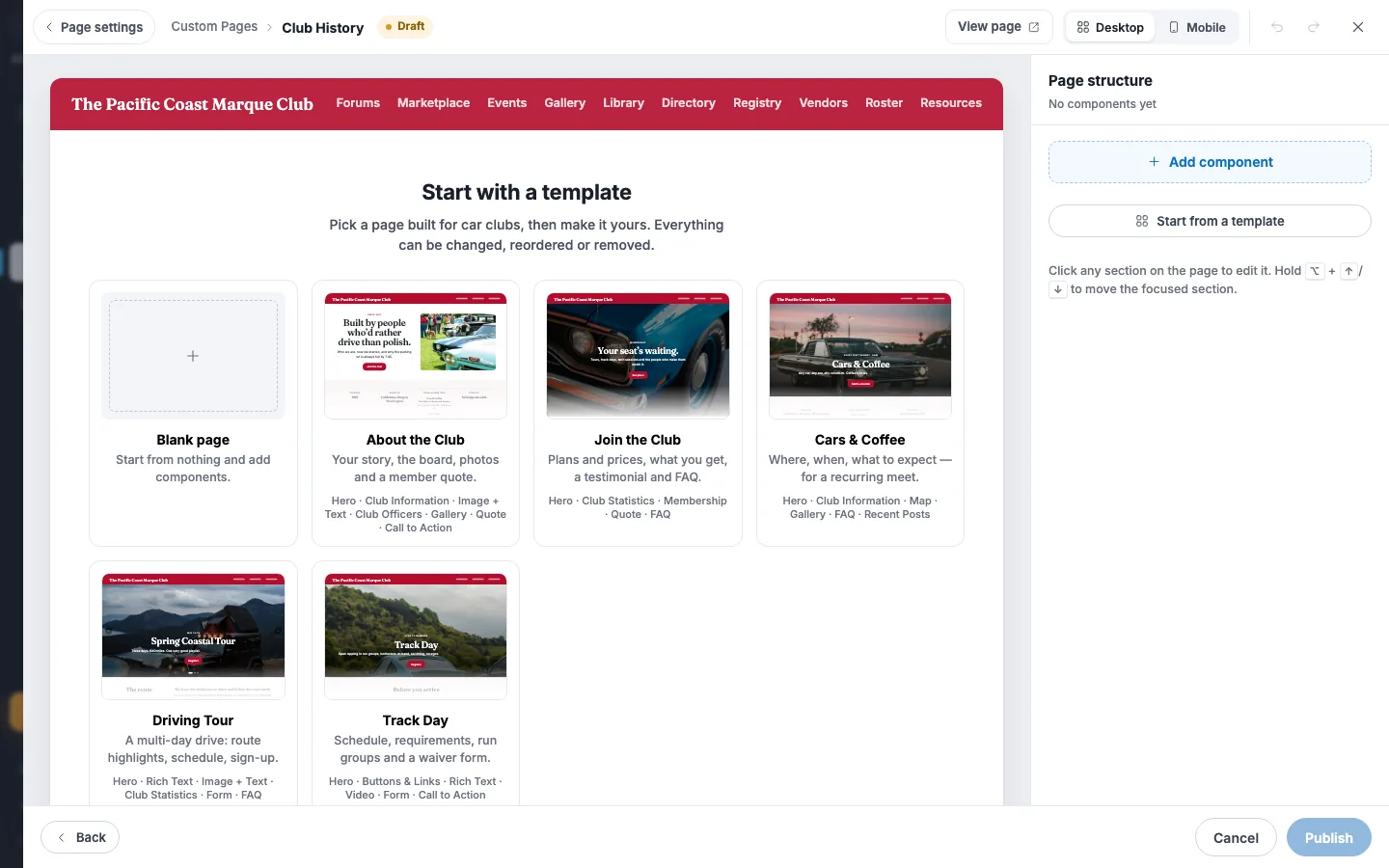
To rebuild an existing classic page, open it and click Rebuild with page builder. Your classic page stays as it is until you publish.
Add and edit sections
- Click Add component, or a + between sections.
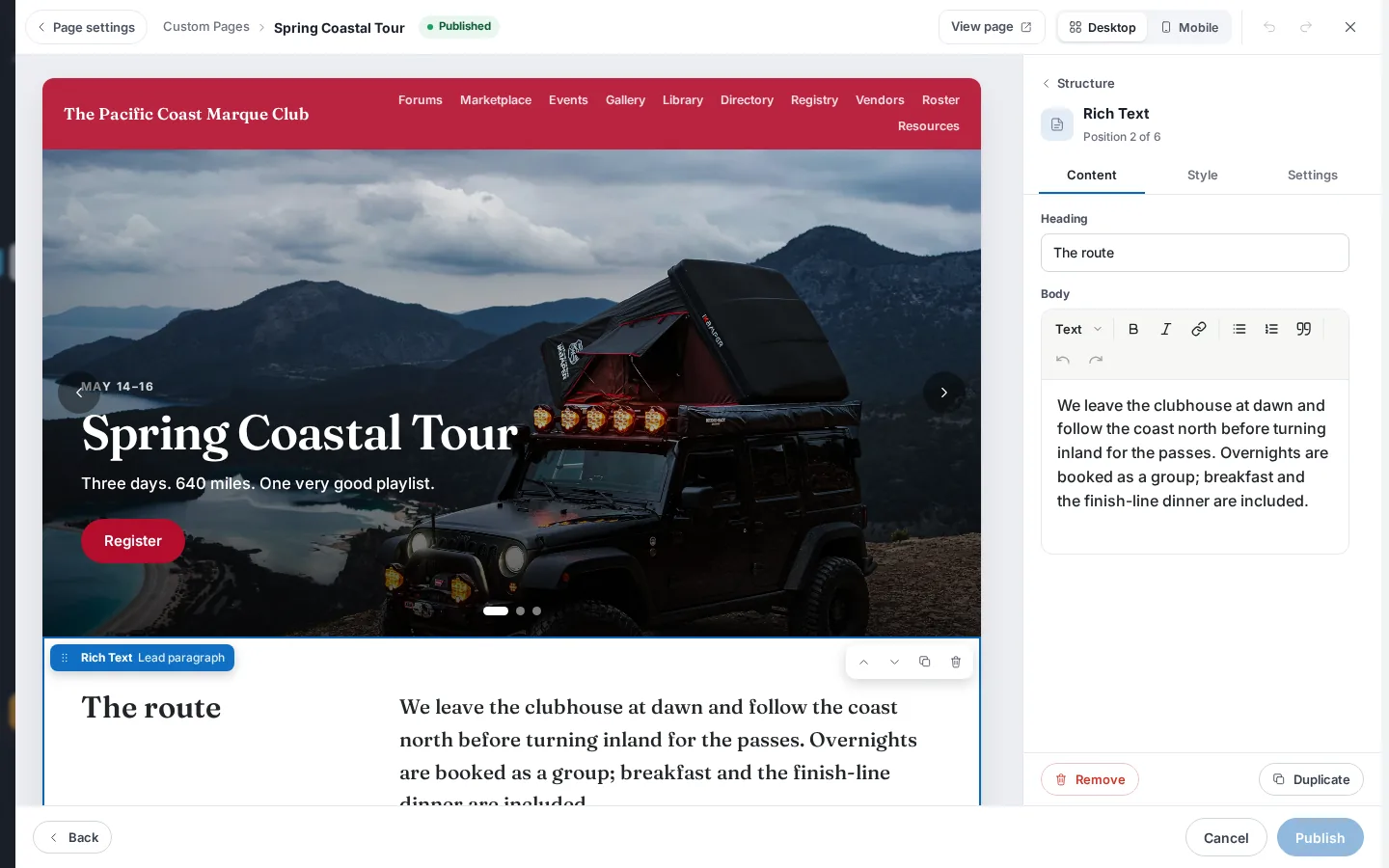
- Search or pick a category, then click Use this style on the style you want. The new section opens on the Content tab.
- Fill in the Content tab. Use Style to change the look and Settings for background, spacing and who sees it.
- Reorder with the Drag to reorder grip, or the Move up and Move down buttons.
- Use Duplicate or Remove at the bottom of the side panel. After removing, click Undo in the toast to bring the section back.
- Click Desktop or Mobile in the top bar to check both widths.
Publish
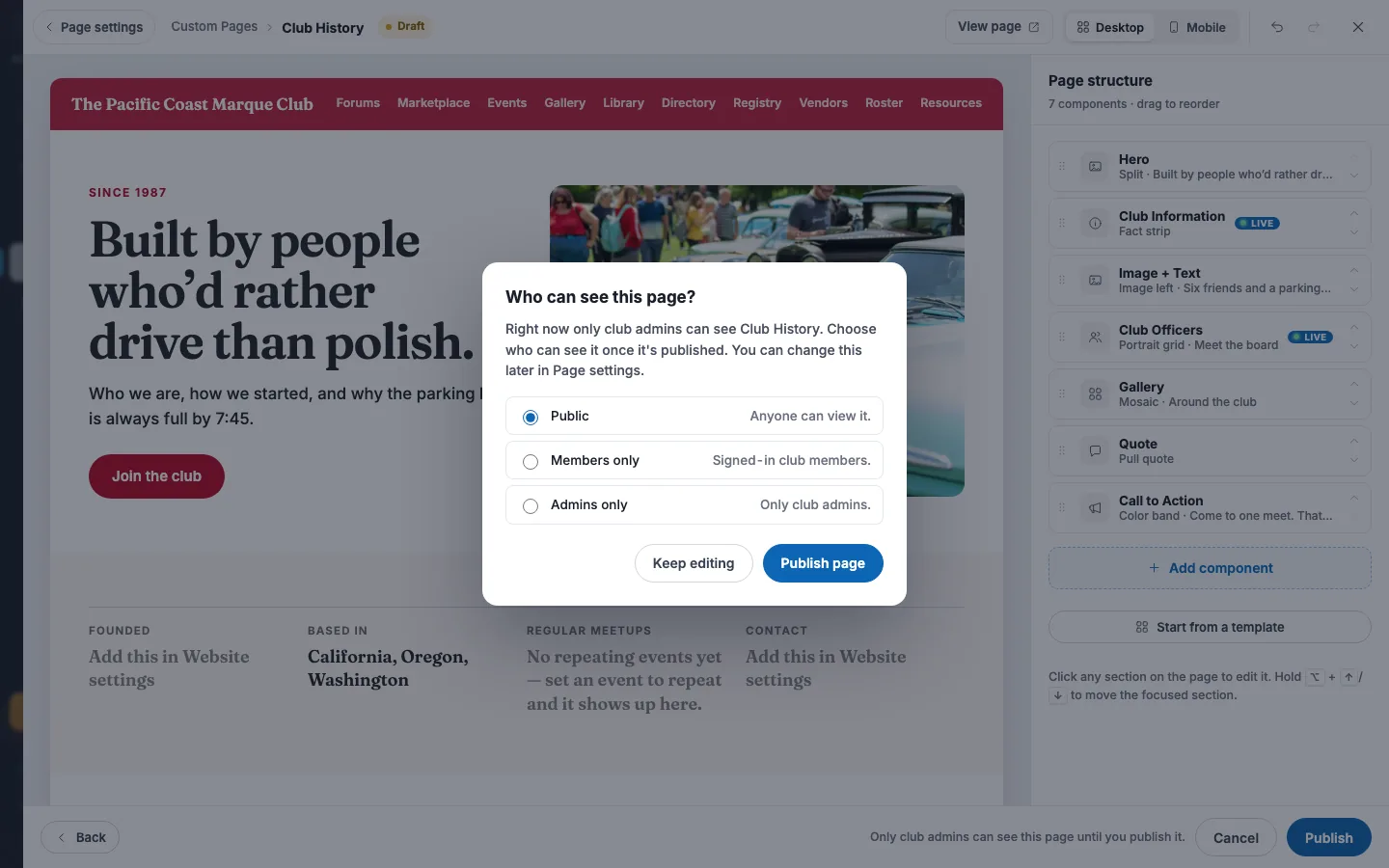
- Click Publish in the footer. It is enabled once you've made a change and have at least one section.
- On a first publish, choose Public, Members only or Admins only under Who can see this page?
- Click Publish page. The status chip changes to Published and the page is live to its audience right away.
To change a section later, click Edit in page builder on the page in Custom Pages, or Edit section on the live page.
Field reference
Page settings
| Field | Required | Format / limits | Notes |
|---|---|---|---|
| Page title | Yes | Text, up to 100 characters | New pages start as "New page". Blank shows A page needs a title. and a Needs info tag. |
| Page address | Yes | Up to 50 characters. Lowercase letters, numbers and hyphens | Follows the title until you edit it. Other characters become hyphens and leading or trailing hyphens are trimmed. Shown after /club/ plus your club id and name. |
| Who can see it | Yes | Public (anyone), Members only (signed-in club members), Password (anyone with the password; the title still shows), Admins only | Defaults to Public. A page built from here is saved Admins only until its first publish. |
| Password | Yes, if Password is chosen | Text, at least 4 characters, placeholder "Give members a password to share" | One password for everyone. Change it and anyone with the old one is locked out. |
| Heading on the page | No | Text; blank hides it | Classic pages only. Follows the title until edited. |
| Content | No | Rich text, placeholder "Write the page…" | Classic pages only. |
| Buttons | No | Up to 2: Main button (filled) and Second button (outline). Each has Button name, When clicked (A page on this site or Another website) and Link or Link (URL) | Classic pages only. A button missing a name or link isn't saved. |
Builder limits
| Field | Required | Format / limits | Notes |
|---|---|---|---|
| Sections per page | n/a | Up to 100 | A warning appears above 60: Long pages load slowly — consider splitting into two pages. |
| Page size | n/a | 512 KB of content | Too large to publish above this. |
Section types and their content fields
Each section has a Content tab with these fields. Titles in brackets are the styles on the Style tab. Switching styles keeps your content.
| Field | Required | Format / limits | Notes |
|---|---|---|---|
| Hero (Classic, Split, Full-screen, Panel) | No | Slides: 1 to 8. Each has an image, Eyebrow (optional), Heading, Subheading, Button label (optional) and Button link | Add a slide (makes a slideshow) and Add slide. The button link shows once a label is set. Advance every is 3 to 15 seconds (default 6) and shows with 2 or more slides. Only Split can be Contained width. |
| Call to Action (Color band, Outlined card, Slim banner) | No | Heading, Body, Button label, Button link, Secondary link, Secondary link URL | Empty button label hides the button. The link fields appear once a label is set. Secondary link with no URL shows as plain text. |
| Rich Text (Standard, Lead paragraph) | No | Heading, Body | Limited formatting, no embedded images. |
| Image + Text (Image left, Image right, Overlap card) | No | Image, Eyebrow, Heading, Body, button label and link | |
| Quote (Pull quote, Testimonial) | No | Quote, Name, Role or detail, Photo | Photo is for Testimonial only. Example detail: "Member since 2009". |
| Video (Wide, Video + text) | Yes, a link | Video link (YouTube or Vimeo), Cover image, Heading, Caption (Wide) or Description (Video + text) | The cover shows until someone presses play. Accepts youtu.be, watch, embed, shorts, live and youtube-nocookie links, and vimeo.com links. |
| Gallery (Even grid, Mosaic, Filmstrip) | No | Heading, Photos from: Choose photos or Gallery folder | Folders list their photo counts. Mosaic shows the first 5 photos. |
| Upcoming Events (Event cards, Date list) | No | Heading, Events to show (1 to 6, default 3), Show “All events” link | Live. |
| Club Officers (Portrait grid, Directory list) | No | Heading, Show a Message link | Live. |
| Club Statistics (Number row, Stat cards) | No | Heading (optional), Numbers to show: Members, Cars, Events, Regions | Live. All four by default. |
| Club Information (Fact strip, About card) | No | Heading, Show: Founded, Location, Regular meetups, Contact email. Regular meetups list, Optional note, button label and link | Live. Untick a meetup to hide it. The button is About card only. With no repeating events you see No repeating events yet — set an event to repeat and it shows up here. |
| Membership (Plan cards, Join banner) | No | Heading, Subheading, Button label, read-only plan list | Live. The button goes to your join page. |
| Cars (Car grid, Showcase, Car list) | No | Heading, Cars to show (2 to 6) | Live. Shows featured registry cars to signed-in members only; guests don't see the section. No count for Showcase. |
| Marketplace Listings (Listing cards, Listing rows) | No | Heading, Show: Everything, Classifieds or Auctions, Listings to show (1 to 6) | Live. |
| Recent Posts (Post list, Post cards) | No | Heading, Posts from: Both, RumbleFeed or Forums, Posts to show (1 to 6) | Live. |
| FAQ (Accordion, Two columns) | No | Heading, up to 20 questions, each with Question and Answer | Click Add question. |
| Buttons & Links (Button row, Link tiles) | No | Heading (optional), Label, Link, Short description | Up to 4 in a row, 9 as tiles. Click Add link. Description is for tiles only. In a row the first button is filled and the rest are outlined. |
| Form (Inline, Form card) | Yes, a form | Form list, Heading, Intro | Live. Draft forms are marked and block publishing. Edit fields in Forms. |
| Social Links (Pills, Account list) | No | Heading, read-only account list | Live. Empty shows No social links yet. Add them in your club profile. |
| Map (Map + details, Wide map) | No | Heading, Place name, Address, Notes, Button label | Pick a suggestion from Start typing an address… so the pin is placed. Notes is for Map + details only. The button opens directions. |
| Member Spotlight (Feature, Profile card) | No | Member, Label, Story (optional), Show their cars, Link label | Live. Shows members who turned on Spotlight. None chosen shows the first. Story and cars are Feature only. Link label appears only when the member has a profile link. |
| Tabs (Tabs on top, Tabs on the side) | No | Heading (optional), up to 6 tabs, each with Tab label, Panel heading, Panel text and an image | Click Add tab. Keep labels to one or two words. Image buttons are Add an image and Remove image. |
| Section Heading (Left, Centered, Split) | No | Eyebrow, Heading, Intro | A page that starts with this or a Hero hides its own title heading. |
| Columns (Icon columns, Photo cards, Numbered steps) | No | Heading (optional), Columns per row (2, 3 or 4), up to 8 items with Heading, Short text, Link label (optional), Link URL | Click Add column. Phones always show one column. Icons are for the icon style, images for photo cards. |
| Divider & Space (Line, Checkered, Road stripe, Space only) | No | Height | Space only. 16 to 160 px in steps of 16, default 48. |
Link fields accept addresses starting with /, #, https://, http://, mailto: and tel:.
Settings tab (every section)
| Field | Required | Format / limits | Notes |
|---|---|---|---|
| Background | No | Page, Tinted, Club color, Dark | Default Page. |
| Spacing | No | Compact, Regular, Spacious | Default Regular. |
| Width | No | Contained or Full width | Default Contained. Hero styles other than Split are locked to full width. |
| Who can see this | No | Everyone, Members, Hidden | Default Everyone. Members hides it from guests but isn't private, so keep sensitive details out. Admins see a lock tag in the editor. |
| When there’s nothing to show | No | Hide section or Show a note | Live sections only. Default Hide section. |
| Anchor link (under Advanced) | No | Lowercase letters, numbers and hyphens, placeholder "e.g. faq" | Lets menus and buttons jump to the section. Duplicate clears the copy's anchor. A repeat on a later section is blanked on publish. |
Images and templates
| Field | Required | Format / limits | Notes |
|---|---|---|---|
| Change image (picker Choose an image) | No | JPG, PNG, WebP, GIF or HEIC, up to 20 MB, no SVG | Pick from Club media or sample images, or use Upload from your computer. |
| Search components | No | Text | Searches the Add component library. |
| Search templates | No | Text | In the Page templates dialog. Groups: All, About & Join, Events, Cars, Community, Info pages. Templates use a fictional club and sample photos, and applying one replaces everything on the page (you can undo). |
What happens next
- Publishing is all or nothing and goes live at once to the audience you chose. The page list and site refresh on their own.
- Nothing is emailed and no feed post is created.
- The page is not added to your menu. Open Site Navigation from Custom Pages to place it.
- Creating a page for the builder saves a real Admins-only page. If you leave before publishing, an empty Admins-only page stays in your list.
- Save in the Custom Pages frame only saves page settings. It never rewrites a built page's sections and shows Custom pages saved.
- If two admins publish the same page, the last one to publish wins.
- To go back to a classic page, click Switch back to classic page and confirm Switch back. This removes the builder version and works only if the page had a classic version.
Fixing problems
"The page builder couldn't load. Check your connection and try again." — The builder files didn't download. Click Back to page settings, then reopen it.
"We couldn't load this page. Check your connection and try again." — The page didn't load, which is a failed load, not an empty page. Click Try again.
"This page uses the classic editor. Go back to page settings to edit it there, or choose Rebuild with page builder." — The page still has classic content. Click Back to page settings, then Rebuild with page builder.
"Couldn't load your pages" (with "Close the editor and try again.") — The page list failed to load. Close the editor and reopen it.
"Finish the page settings first" (with "Give the page a title and an address, then build it.") — The title, address or password is missing or invalid. Fix the form, then click Build with page builder again.
"A page needs a title.", "A page needs an address." — The field is blank. Fill it in.
"/terms-of-use" is reserved for the RumbleSeat Terms of Use. Choose a different page address. and "/privacy-policy" is reserved for the RumbleSeat Privacy Policy. Choose a different page address. — Those addresses belong to RumbleSeat. Choose another.
"Another page already uses this address." — Page addresses must be unique, ignoring capitals. Change the address.
"Add a password, or choose who can see it another way.", "Use at least 4 characters." — Password is selected but empty or too short. Enter 4 or more characters, or pick another option.
"Add a button name to show this button.", "Add a link to show this button." — A classic-page button is half filled in. Complete it or leave it blank.
"Couldn't save “Club History”" (with the server's reason, or "Try again.") — Saving the page before building failed. Read the reason, fix it and retry; your chosen visibility is restored in the form. The same message with "delete" instead of "save" appears when a delete fails, and with "Your other unsaved changes are still here." when the server gives no reason. Saving stops at the first failure, so earlier steps stay saved.
"Couldn't create the page" (with "Check your connection and try again.") — The page couldn't be created. Check your connection and try again.
"Club context missing — please reload." — The club didn't finish loading. Reload the site.
"Couldn’t save navigation" (with "Your changes weren't saved. Please try again.") — Changing a page address couldn't update its menu entry. Save again, then check Site Navigation.
"Add at least one section to publish." — The footer note when the page is empty and Publish is disabled. Add a section.
"Couldn't publish" toasts. One entry per cause:
- "Add at least one section before publishing." — Nothing is on the page. Add a section.
- "A page can have up to 100 sections. Remove some and try again." — Too many sections. Remove some or split the page.
- "This page is too large to publish. Remove some sections and try again." — The content passes 512 KB. Remove sections or large text.
- "Section 2 (Video) needs a YouTube or Vimeo link. Add one, or remove the section." — The Video section has no valid link, so the builder selects it. Paste a link, or remove the section. The field shows Required. Paste a YouTube or Vimeo link from your browser. or That isn’t a YouTube or Vimeo video link.
- "Section 4 (Form) needs one of your club forms. Choose one, or remove the section." — No form is chosen. Pick a form or remove the section.
- "Section 4 (Form) uses a form that's still a draft. Publish the form in Forms, or choose another." — The chosen form is a draft. Publish it in Forms, or pick another.
- "Section 3 (Gallery) couldn't be saved as it is. Change or remove it and try again." — The server rejected that section. Change or remove it.
- "You don't have permission to publish this page. Sign in again, or ask a club admin." — Your sign-in expired or you lack access. Sign in again.
- "This page no longer exists. It may have been deleted." — Someone deleted the page. Check Custom Pages.
- "Your changes weren't published. Check your connection and try again." — A network or other failure. Click Publish again; your edits are kept.
"Published, but only club admins can see it" (with "Who can see it wasn't saved. Go to Page settings and press Save to try again.") — The page is live but the audience choice didn't save. Click Page settings, check Who can see it, then Save.
"Club History published" and "Club History is a classic page again" — Success toasts, shown with your own page title. The first confirms a publish and the second a switch back to the classic page. If a publish then fails, an error toast from the list above follows.
"Couldn't switch back" (with "This page was created in the page builder, so there's no classic version to switch back to.") — There's no classic version. Keep using the builder.
"Couldn't switch back" (with "The page wasn't switched back. Check your connection and try again.") — The switch failed. Try again.
"Discard unpublished changes?" (with "Your edits to Club History haven’t been published. Visitors will keep seeing the last published version.") — You closed, cancelled or left with unpublished edits. Click Keep editing, or Discard changes to throw them away.
"Long pages load slowly — consider splitting into two pages." — The page has over 60 sections. Split it into two pages.
"Couldn't load your gallery folders", "Couldn't load your forms", "Couldn't load your members", "Couldn't load your membership plans", "Couldn't load your social links", "Couldn't load your events" — The data behind a section didn't load. Click Retry. On the canvas the same kind of failure reads "Couldn't load" plus the source name, and on the live page that section shows nothing.
"No gallery folders yet. Create one in your club Gallery.", "No forms yet. Create one in Forms, then pick it here.", "No members have opted in yet. Members turn on Spotlight on their membership page; admins can turn it on from the member’s record.", "This member is no longer in the spotlight list." — The source is empty or the member left the list. Add the data, or pick another member.
"Nothing here yet" and "Nothing to show yet — this section is hidden on the live page until there is." — A live section has no data. Add data, or change When there’s nothing to show.
"That file isn’t an image" (with "Choose a JPG, PNG, WebP, GIF or HEIC image.") — You picked a non-image file. Pick an image.
"Couldn’t upload that image" — The upload failed. The detail line will be one of these, with a fix each:
- "Please try again, or choose a different file." Try again or use another file.
- "Open a page before uploading." Open a page first.
- "Choose an image file (JPG, PNG, WebP or HEIC)." and "Choose a JPG, PNG, WebP or HEIC image." Use a supported image; SVG isn't accepted.
- "That image is over 20 MB. Choose a smaller one." Resize it.
- "Couldn’t upload the image. Please try again." Try again.
"Couldn’t load your club media. You can still upload from your computer." — The media list failed to load. Use Upload from your computer. While loading you see Loading club media…, and an empty library reads No images in your club media yet. Upload one below.
"Use a link starting with https://, / or mailto:" — The link isn't allowed. Use a link starting with one of those.
"Couldn't export your pages" (with "Please try again in a moment.") — Export pages & media failed. Try again. On success you see Export ready.
"“Club History” saved" (with a count such as "2 of 5 images couldn't be uploaded. Try adding them again.") — Some pasted images on a classic page didn't upload. Add them again.
Rebuild notes you may see in the banner: "We copied this page's content into a Rich Text section.", "Nothing on this page could be copied into the builder.", and a list of parts that can't move over, such as tables, forms, embedded video, custom HTML, scripts and custom colors. Those stay on your classic page.
Messages visitors see
"Couldn’t submit", "We couldn’t attach your file — please contact the club.", "We couldn’t check whether you’ve already responded." — These come from a Form section on the live page. Visitors retry, or contact the club.
Tips & tricks
- Start from a template and swap the sample text and photos. Video and Form templates need a link or form before they publish.
- Press Ctrl or ⌘ plus Z to undo and Ctrl+Shift+Z or Ctrl+Y to redo. Alt plus the up or down arrow moves a focused section.
- Rebuilding is safe. Cancel before the first publish and the seed content is restored.
- Set Who can see this to Members for a section only members should see. It isn't private, so don't put sensitive details in it.
- Give sections an Anchor link like
faq, then link to#faqfrom a button.
Frequently asked
Does building a page change my classic page? No. The builder never edits the classic content, and your classic page stays exactly as it is until you publish. You can switch back later if a classic version exists.
Why isn't my new page in the menu? The builder doesn't add pages to your menu. Use Site Navigation, where the page appears under Available Items.
Can I build pages on my phone? No. At 768 px or narrower the builder is view-only, so open it on a tablet or computer.
Who sees a section set to Members? Signed-in members. Guests don't see it, and the Cars section is always members only.