Show pop-up messages on your club site
A pop-up is a message that greets visitors on your club site: a heading, a short message, an optional image and up to two buttons, shown on the conditions you set. Use one to invite newcomers to join, remind members about dues, or promote an event. For a permanent spot on a page, use a section on the page itself instead (see Customize your club website).
Before you begin
- You need to be a full club owner or admin. Delegated roles, including Site Manager, can't open Pop-ups. See Access the Control Panel.
- Have your wording ready: a heading, a short message, and the label and link for the main button.
- Optional: an image file (PNG, JPEG, WebP, GIF, AVIF or HEIC, up to 25 MB).
- To target a custom page, create it first. See Custom pages.
Step-by-step
Create a pop-up
- Open your club site and open the Control Panel.
- Click the Features tab, find the Marketing group, and click the pencil on the Pop-ups row (Edit Pop-ups). The editor opens.
- Make sure Show pop-ups on your site is on.
- Click New pop-up. A blank pop-up opens with the preview on the right.
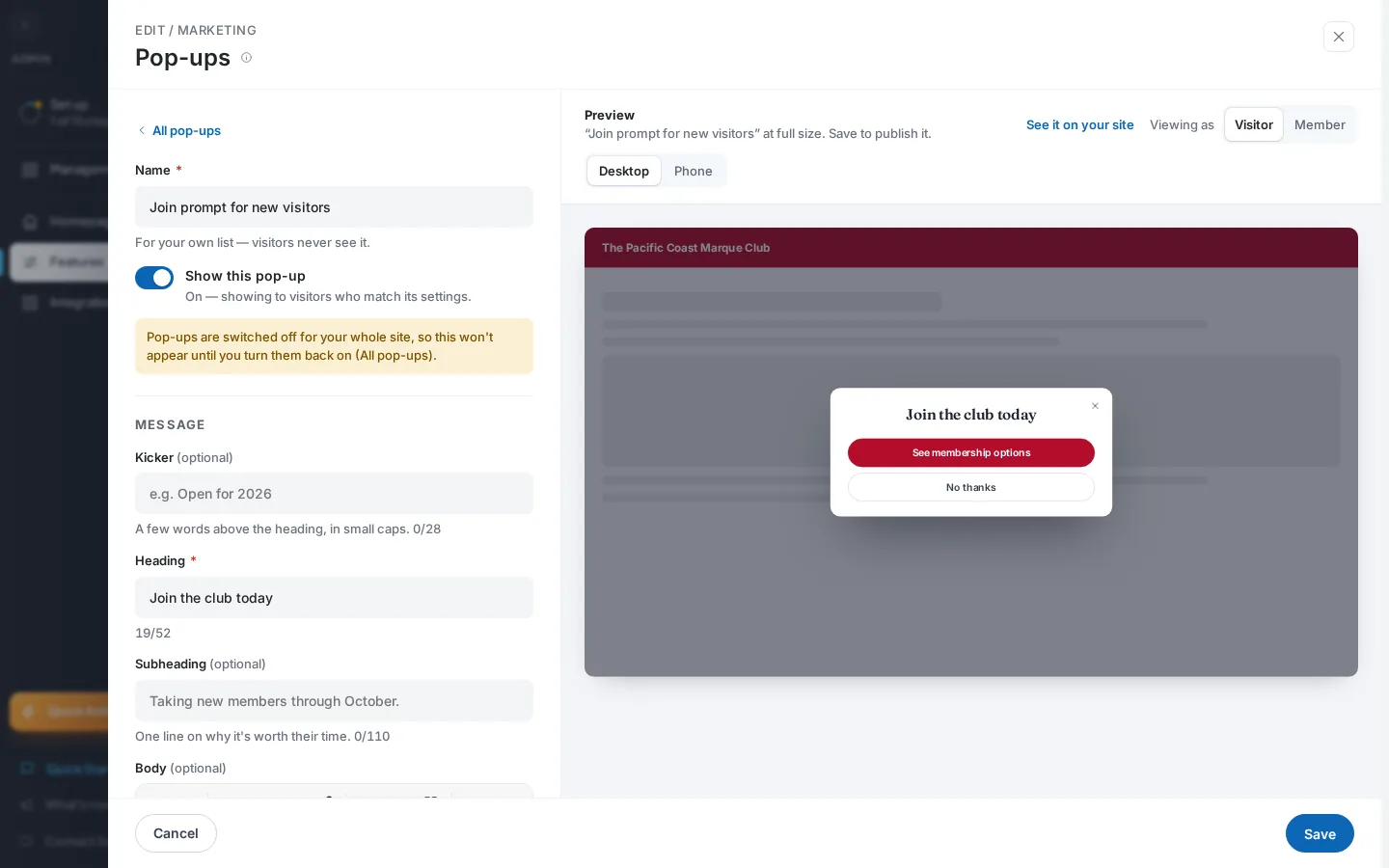
- Enter a Name. Only you see it.
- Enter a Heading, then an optional Subheading and Body.
- Enter Main button text and Main button link, such as
/join. - Under Who sees it, pick an audience.
- Under When it appears and How often they see it, pick your timing.
- Click See it on your site to check it as a visitor would. Close the preview when you are done.
- Click Save. You see Pop-ups saved.
Choose pages and dates
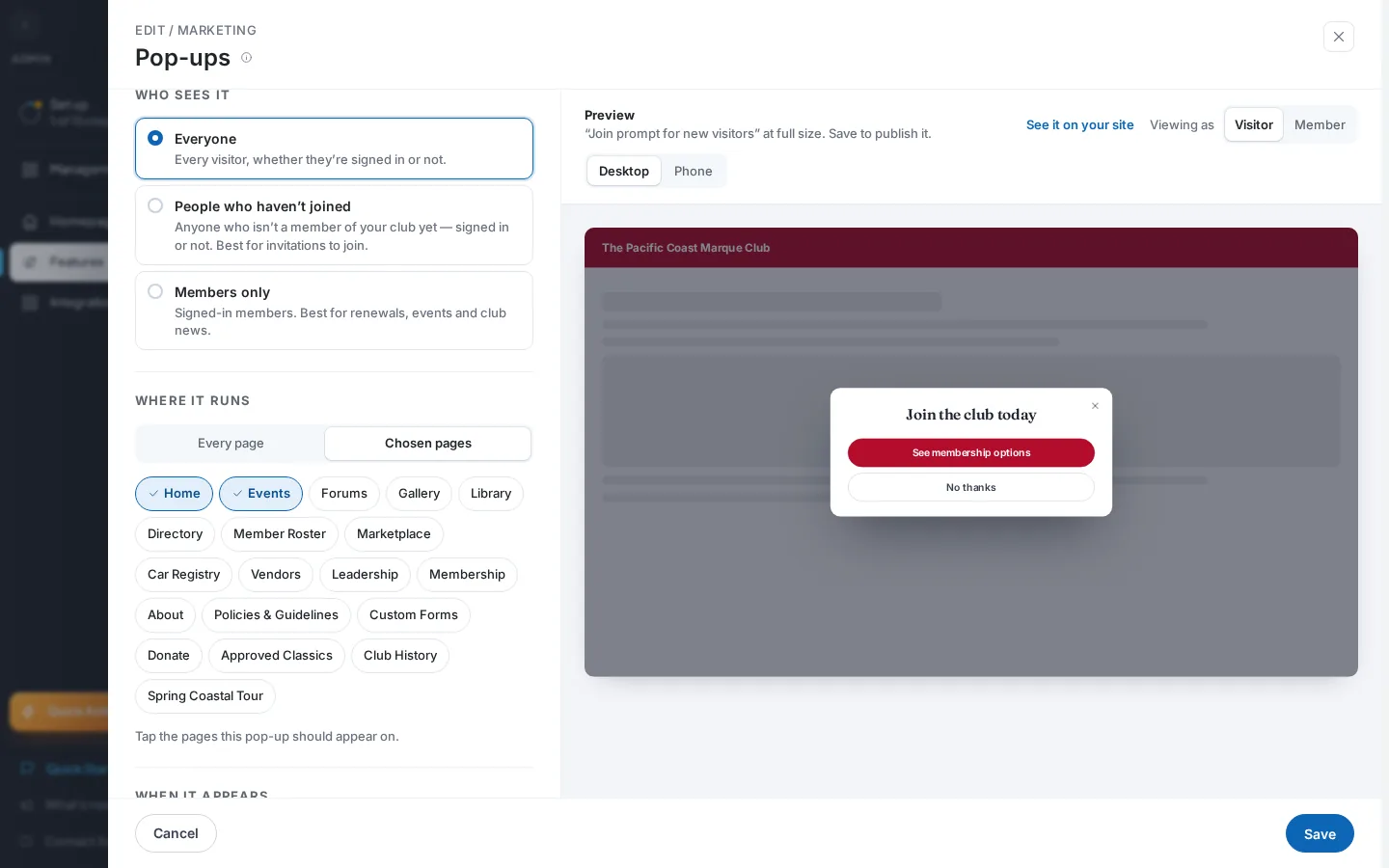
- In the edit view, find Where it runs.
- Click Chosen pages, then tick each page where the pop-up should appear.
- Under Start and stop dates, set Starts and Ends if you want a schedule.
- Click Save.
Set the order, copy or delete
- Click All pop-ups to return to the list.
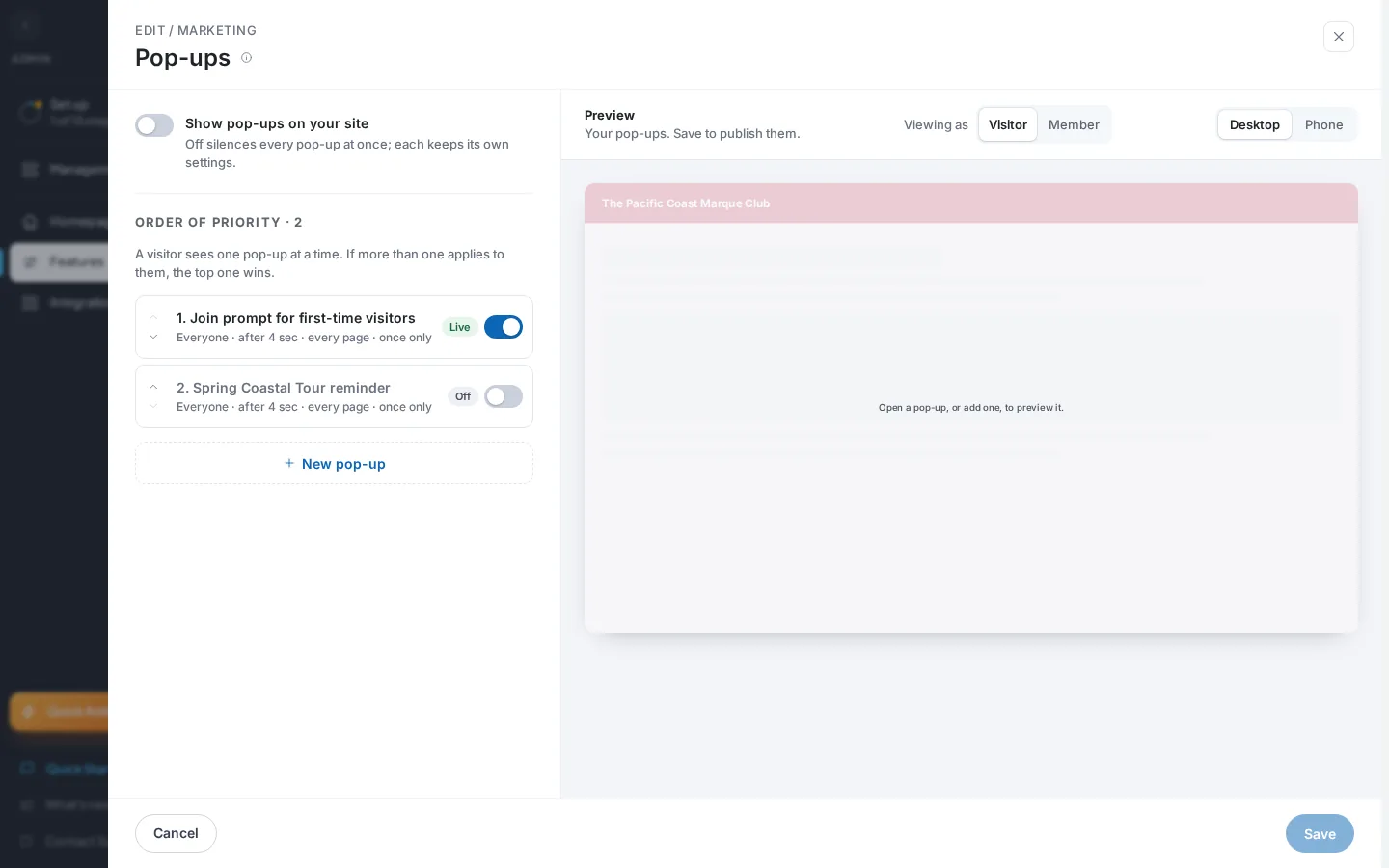
- Use the up and down arrows to change priority. A visitor sees only the top pop-up that applies.
- To copy, open a pop-up and click Make a copy. The copy starts switched off, at the end of the list.
- To remove one, open it and click Delete this pop-up, then Delete pop-up.
- Click Save. Reordering, switches, copies and deletions only take effect after you save.
Field reference
| Field | Required | Format / limits | Notes |
|---|---|---|---|
| Show pop-ups on your site | No | Switch, on by default | Master switch in the list view. Off silences every pop-up while each keeps its settings. |
| Name | Yes | Text, up to 60 characters | For your own list. Visitors never see it. Names need not be unique. |
| Show this pop-up | No | Switch, on by default | Off means visitors never see it. |
| Kicker | No | Text, up to 28 characters | A few words above the heading in small caps. |
| Heading | Yes | Text, up to 52 characters | Counter shows characters used. |
| Subheading | No | Text, up to 110 characters | One line on why it is worth their time. |
| Body | No | Rich text | Two short sentences work best. A live character count turns to a warning above 320. No embedded images. |
| Image | No | PNG, JPEG, WebP, GIF, AVIF, HEIC; up to 25 MB; one image | Upload a file or paste a web address. Sits above the text, cropped wide. HEIC is converted for you. Uploads happen immediately, even before you save. |
| Describe the image | No | Text, up to 90 characters | Appears once an image exists. Read aloud to visitors who cannot see it. |
| Main button text | Yes | Text, up to 28 characters | Example: See membership options. |
| Main button link | Yes | A page on your site such as /join, or a full web address | The link format is not checked, so test it. |
| Second button text | No | Text, up to 28 characters | Starts as No thanks. Leave empty for a single button. |
| Second button link | No | Same as main link | Shown only when the second button has text. Empty means the button closes the pop-up. |
| Small print under the buttons | No | Text, up to 70 characters | Example: No card needed to look around. |
| Who sees it | Yes | Everyone, People who haven’t joined, or Members only | Default is Everyone. Non-members means anyone not yet a member, signed in or not. Members only means signed-in members. |
| Where it runs | Yes | Every page or Chosen pages | Default is Every page. |
| Pages | Yes, with Chosen pages | One or more checkboxes | Home, Events, Forums, Gallery, Library, Directory, Member Roster, Marketplace, Car Registry, Vendors, Leadership, Membership, About, Policies & Guidelines, Custom Forms, Donate, plus each custom page. Terms of Use and Privacy Policy cannot be targeted. |
| When it appears | Yes | After a short wait, or As they go to leave | Default is After a short wait. On phones and tablets, As they go to leave uses the wait instead. |
| Wait before showing | No | Slider, 0 to 30 seconds | Default 4. On phones the label reads On phones, wait this long. |
| How often they see it | Yes | Once only, Once each visit, Now and then, or Every page they open | Default is Once only. Every page they open is for testing. |
| Wait between showings | No | Slider, 1 to 90 days | Default 30. Shown only for Now and then. |
| Stop once they tap the main button | No | Checkbox, ticked by default | Visitors who tap the main button never see it again. |
| Starts | No | Date | Empty means as soon as it is on. |
| Ends | No | Date, not before Starts | Empty means it runs until you turn it off. |
A close (×) always appears. Anyone who closes a pop-up twice never sees it again, and you cannot change that.
What happens next
- The editor stays open after you save, and the changes go live for all visitors at once.
- Each row in the list shows a status tag: Off, Scheduled, Ended or Live. A Needs info tag means a required field is missing.
- A visitor sees at most one pop-up per page view. The first pop-up in your list that matches wins.
- Pop-ups never appear on Terms of Use or Privacy Policy, or while an editor is open.
- A button link on your site loads the page fresh. Links to other sites open in a new tab.
Fixing problems
"Give this pop-up a name so you can find it later." — The Name is blank. Type a name.
"Visitors need a heading to read." — The Heading is blank. Type a heading.
"Add the words for the button." — The Main button text is blank. Type a label.
"Add where the button goes." — The Main button link is blank. Enter a path such as /join or a full web address.
"Pick at least one page." — Chosen pages is set with nothing ticked. Tick a page or switch to Every page.
"The end date is before the start date." — Ends is earlier than Starts. Change one of them.
Save stays disabled while any pop-up has one of these errors. The list shows Needs info on the pop-up to open.
"Couldn't load your pop-ups." — The editor could not fetch your settings. Click Try again.
"Save failed" — The server refused the save. The message under it names the problem, or reads "We couldn’t save your pop-ups. Please try again." or "Please try again." Fix the field it names or retry. Your edits are kept.
"Image not added" — The file was refused for one of three reasons. "That file isn't an image we can use. Try a JPG, PNG, WebP, GIF or HEIC." means choose another format. "That image is too large." means use a file under 25 MB. "Only one image can be added." means remove the current image first.
"Couldn't upload the image" — The upload failed, with the server's reason or "We couldn’t upload that image. Please try again." Try again; the image is cleared.
Warnings (you can still save)
- "“Every page they open” is a testing setting — change it before you leave this pop-up on." Pick a different frequency.
- "Appearing in under two seconds reads as an interruption. Three to five seconds gets dismissed less." Raise the wait.
- "Members rarely open the Join page, so this may almost never appear." Choose other pages.
- "Long pop-ups get skimmed. Two short sentences and a button works better." Shorten the Body.
- "The end date (Oct 31, 2026) has passed, so this is on but never appears. Change the date or turn it off." Your date will differ. Change Ends or switch the pop-up off.
- "The image has no description, so visitors using a screen reader are told nothing about it." Fill in Describe the image.
"Pop-ups are switched off for your whole site, so this won't appear until you turn them back on (All pop-ups)." — An amber note in the edit view. Show pop-ups on your site is off. Click All pop-ups and turn it on, then save.
Nothing shows on the site. Check the master switch, the pop-up switch, the dates, the audience and the page. A visitor who closed it twice, or already saw it under a once-only rule, will not see it again.
Tips & tricks
- Use See it on your site and the Viewing as toggle (Visitor or Member) to preview before you save. Previews record nothing.
- If the audience excludes the viewer you chose, the preview says so.
- To pause a pop-up but keep its wording, switch it off instead of deleting it.
- Members only suits renewals and club news. People who haven’t joined suits invitations to join.
- Leave out the image for short, urgent notices.
- Put your most important pop-up at the top of the list.
Frequently asked
Can visitors see more than one pop-up at once? No. A visitor sees one pop-up per page view, chosen by list order, and none after it is closed.
Does deleting a pop-up take effect immediately? No. It is removed when you click Save. To stop it showing while keeping the wording, switch it off.
Does a copy appear on my site right away? No. A copy starts switched off at the end of the list, and nothing goes live until you turn it on and save.
Do pop-ups show while I am editing? No. They are hidden while any editor is open. They return once you close the editor.