Set up your club's vendor directory
The vendor directory is a page on your club site listing the shops, specialists, and suppliers your members trust: the restoration shop that did a good job, the appraiser who understands club cars, the transporter who shows up on time. Each vendor gets a profile with contact details, and signed-in members can rate vendors and comment on them. Club admins and Site Managers build it from the Vendors page of the club site, and you can switch it on or off from the Features list in the Admin Control Panel.
Before you begin
- Who can do this. A full club admin can do everything, including choosing who can see the directory and turning the feature on or off. A delegated Site Manager can open the editor and manage vendors, categories, and the page heading, but does not see the Who can see it section. Other delegated roles (Moderator, Organizer, Treasurer, Messenger) cannot open the editor, and nothing tells them why.
- Turn the feature on first. The directory is off by default. While it is off, your club navigation has no Vendors item, and a link straight to the vendors page sends visitors to the club home page. In the Admin Control Panel, find the Vendor Directory row under Features and switch it on. The editor opens right away.
- Sketch your categories. They become the filters on the directory. A handful of broad ones beats twenty narrow ones: Restoration & Bodywork, Parts & Spares, Transport & Storage, Insurance & Appraisal.
- Gather vendor details. For each vendor you need a name, a short description, and at least one way to reach them (website, phone, email, or address). A cover image is optional. Accepted formats are JPEG, JPG, PNG, WebP, GIF, AVIF, HEIC, and HEIF, up to 25 MB.
- For the wider site, see Customize your club website and Inside a club website.
Step-by-step
Nothing you do in the editor goes live until you click Save at the bottom. Add as many categories and vendors as you like, then save once.
Open the editor
- Open your club site. Click Vendors in the club navigation.
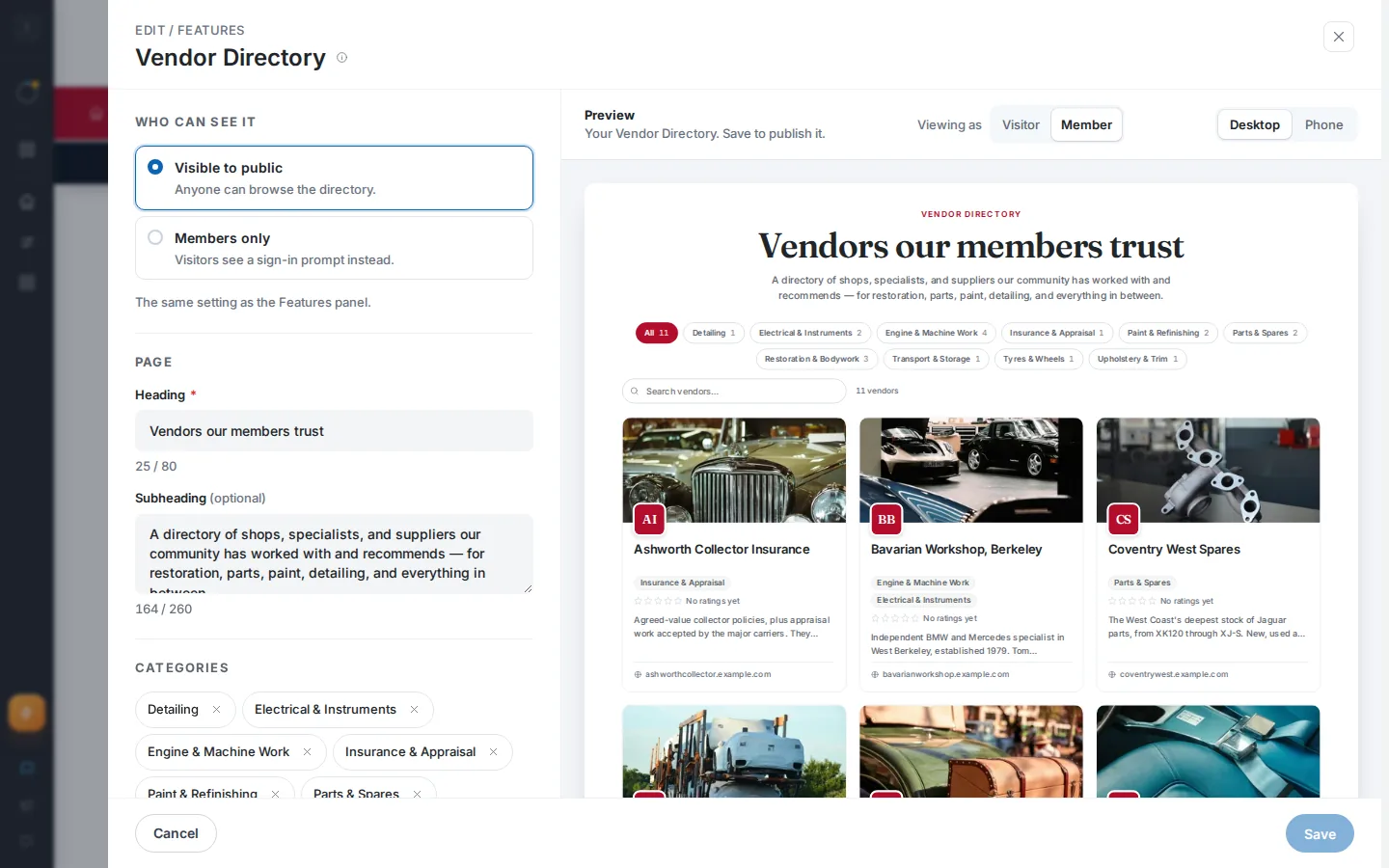
- Click Vendor settings in the admin bar, next to the Viewing as switch. The Vendor Directory editor opens, with a preview beside it.
- Wait for Loading vendors… to disappear. The heading box and Save stay disabled until it does.
The directory's heading and subheading are edited here too, under Page. You can also open the editor from the Admin Control Panel by using the edit control on the Vendor Directory row. If the directory is empty, click Add your first vendor on the page. To jump to one vendor, open its page and click Edit vendor.
Set who sees it, and name the page
- In Who can see it (full admins only), choose Visible to public (anyone can browse the directory) or Members only (visitors see a sign-in prompt instead). This is the same setting as in the Features panel.
- Under Page, type your Heading. It is required and holds up to 80 characters.
- Type a Subheading if you want one. It is optional and holds up to 260 characters.
If you have not set anything, members see the heading "Vendors our members trust" and a default subheading about shops, specialists, and suppliers. A heading that sounds like your club reads better than a label like "Vendor Directory".
Add categories
- Under Categories, type a name in the New category box.
- Click Add, or press Enter. The new category appears as a chip.
- Repeat for each category.
To remove a category, click the × on its chip. A category you have not saved yet can be renamed by typing in its chip. A saved category cannot be renamed here.
Add a vendor
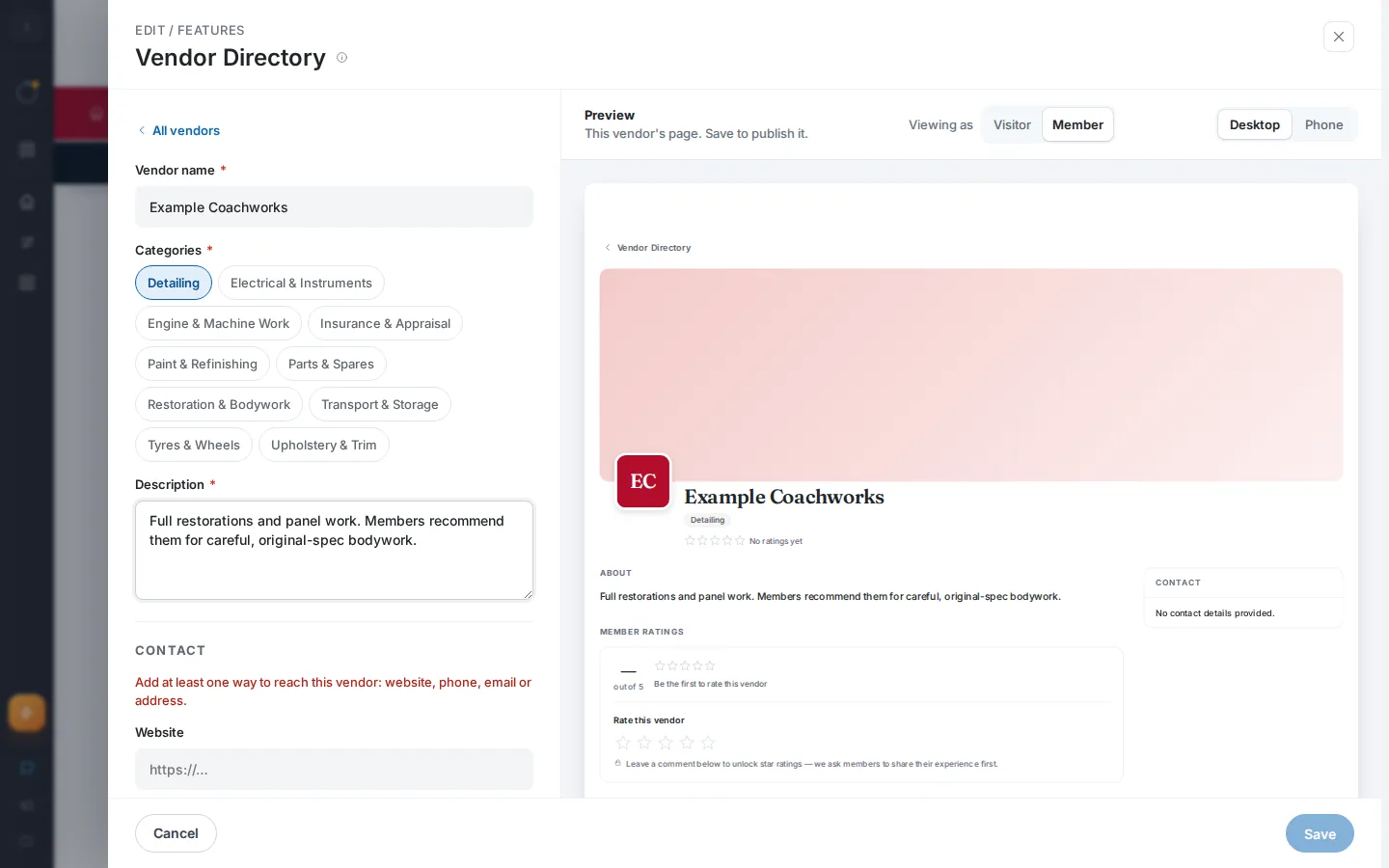
- Click Add vendor in the Vendors list. A blank vendor form opens.
- Type the Vendor name.
- Under Categories, click one or more chips.
- Type a Description: what they do and why members recommend them. Lead with the useful part, because the first lines show on the vendor's card.
- Under Contact, fill in at least one of Website, Phone, Email, or Address.
- Optionally, add Other website / profile, Facebook, and Instagram under Social links.
- Optionally, add a Cover image under Cover image.
- Click All vendors to go back to the list. The new vendor shows a New tag.
- Click Save.
Edit or remove a vendor
- In the Vendors list, click a vendor's row. Its form opens.
- Change what you need. Edited vendors show an Edited tag in the list.
- To delete it, click Remove this vendor, then click Remove vendor in the confirmation.
- Click Save.
Removing a vendor you have not saved yet needs no confirmation. For a saved vendor, the confirmation says the removal can't be undone, and it takes effect when you save. Choose Keep it to back out.
Preview before you save
Use Viewing as to switch between Visitor and Member. The preview shows your unsaved changes. With Members only selected and Visitor chosen, you see the sign-in gate instead of the directory.
Field reference
| Field | Required | Format / limits | Notes |
|---|---|---|---|
| Who can see it | No | Choose Visible to public or Members only | Full admins only. Same setting as the Features panel. Members only is saved as a private directory. |
| Heading | Yes | Text, up to 80 characters | Default is "Vendors our members trust". The box stops at 80 characters. Save is disabled while it is blank. |
| Subheading | No | Text, up to 260 characters | A counter shows how many characters you have used. Clearing it may bring the default text back the next time you open the editor. |
| New category | No | Text; duplicates ignored regardless of capitalization | Add box with the Add button. A duplicate clears the box and adds nothing. |
| New category name (the chip of an unsaved category) | Yes | Text, no duplicates | Only unsaved categories can be renamed. |
| Vendor name | Yes | Text, example "Heritage Coachworks" | Keep it under 100 characters. |
| Categories | Yes, once your club has any category | Click one or more chips | With no categories yet, add them from the All vendors list first. |
| Description | Yes | Plain text | Blank lines make new paragraphs. Single line breaks are kept. Characters like & and < show as typed. |
| Website | One of the four contact fields | Web address, such as acmeautorepair.com | We add https:// for you if you leave it off. It needs a dot in the domain and no spaces. |
| Phone | One of the four contact fields | Text, example (555) 555-0000 | Not checked for format. Keep it to 20 characters. |
| One of the four contact fields | Email address, such as shop@example.com | Keep it under 100 characters. | |
| Address | One of the four contact fields | Street, City, ST ZIP | Suggestions appear as you type. |
| Other website / profile | No | Web address | Not checked for format. |
| No | Web address, such as https://facebook.com/yourshop | Not checked for format. | |
| No | Web address, such as https://instagram.com/yourshop | Not checked for format. | |
| Cover image | No | One image: JPEG, JPG, PNG, WebP, GIF, AVIF, HEIC, or HEIF; up to 25 MB | Uploads when you click Save. HEIC and HEIF convert to WebP when you pick them. With no image, the card shows a branded banner. |
The editor loads and manages up to 300 vendors.
What happens next
When you click Save, a Vendor Directory saved message appears right away, then your changes are written one after another. The editor stays open afterward. The club site refreshes so members see the changes. Vendors are not notified, and no emails go out.
Changes are applied in this order: visibility, heading and subheading, new categories, vendor deletions, vendor edits and photos, new vendors and photos, and category removals last. If one step fails, the steps after it do not run. What already saved stays saved, and the rest keeps its New or Edited tag.
Removing a saved category takes it off its vendors. They keep their other categories.
Here is what members see. The directory opens with your heading and subheading, a filter chip for each category with a count, a search box, and a card per vendor.
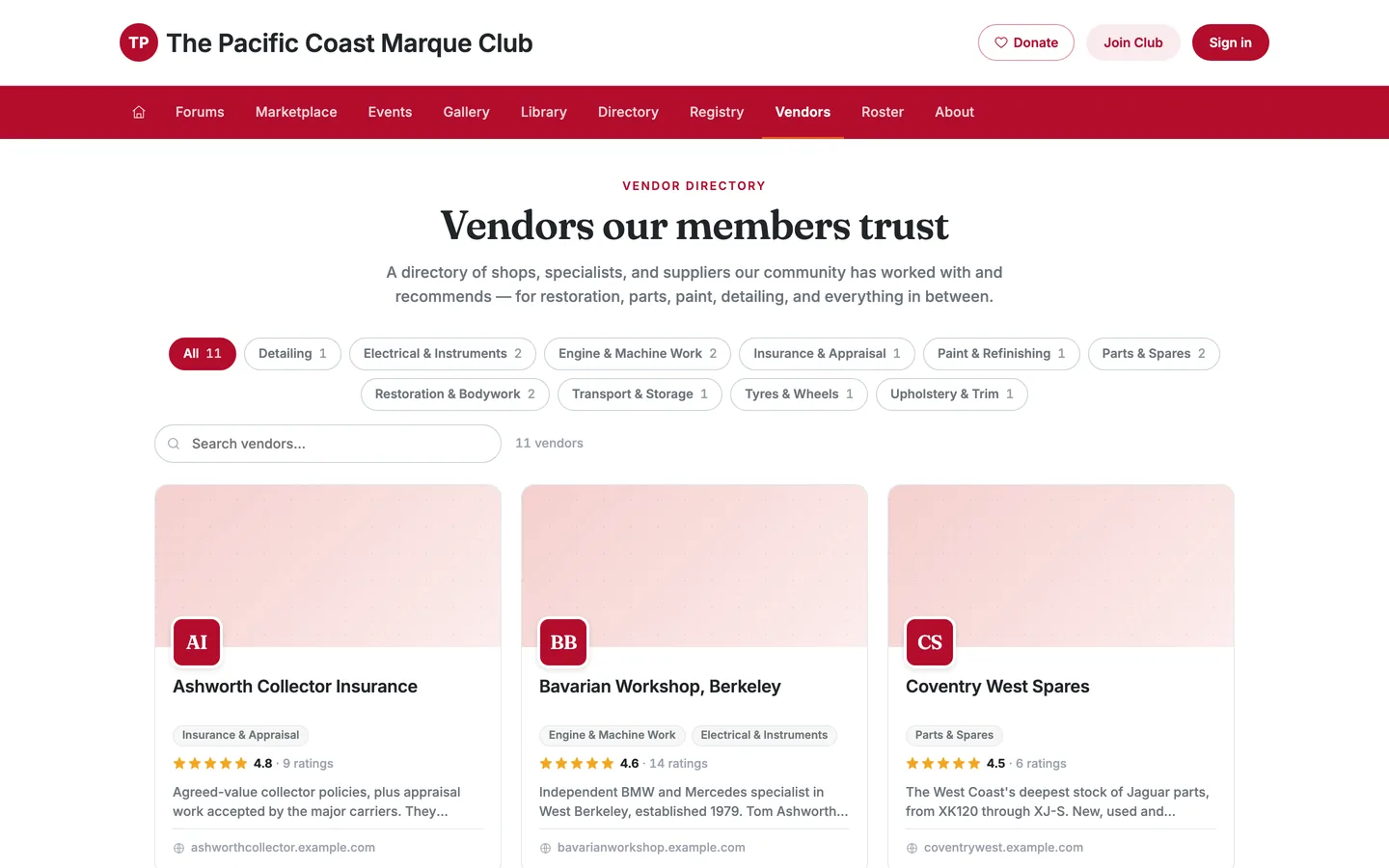
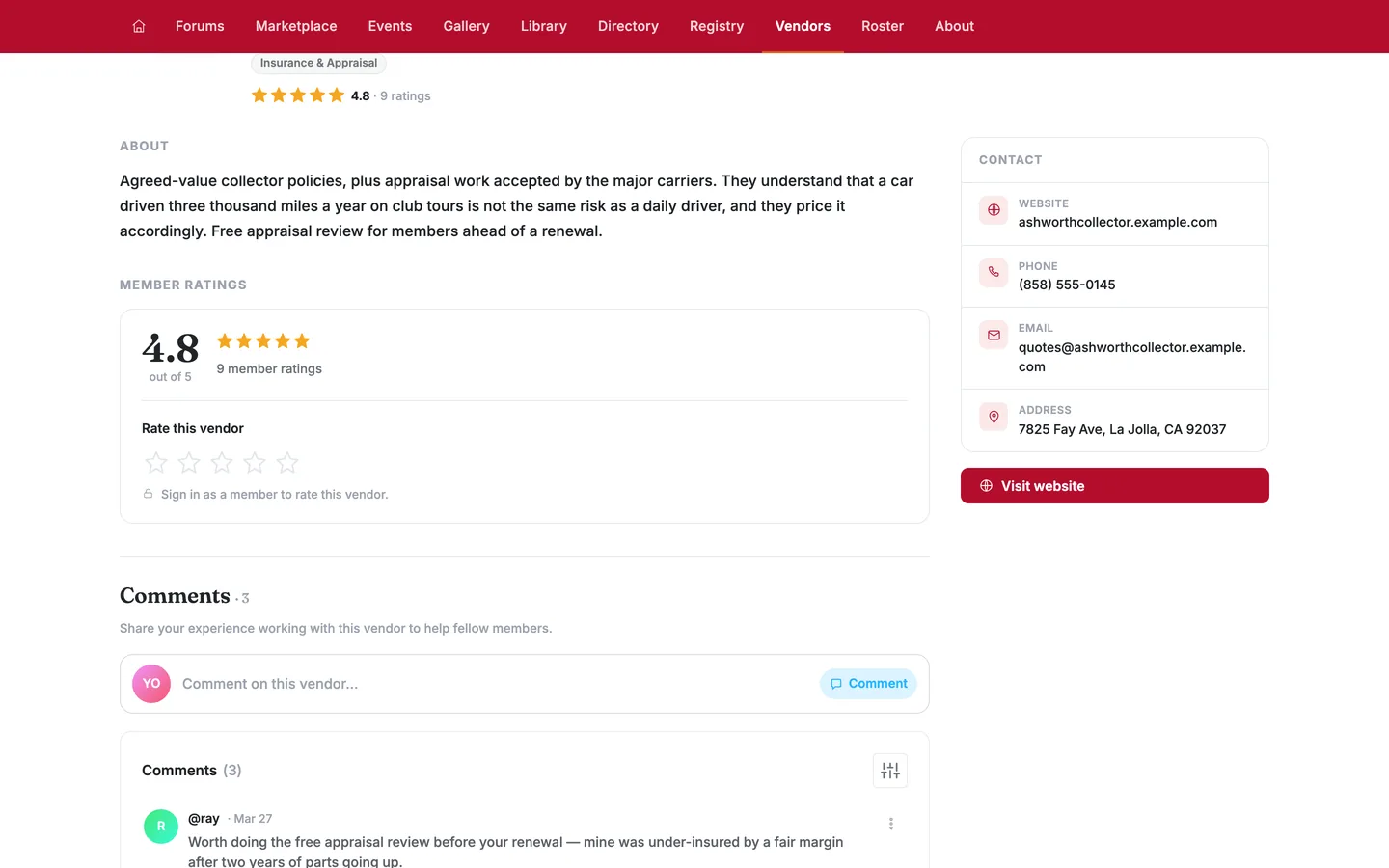
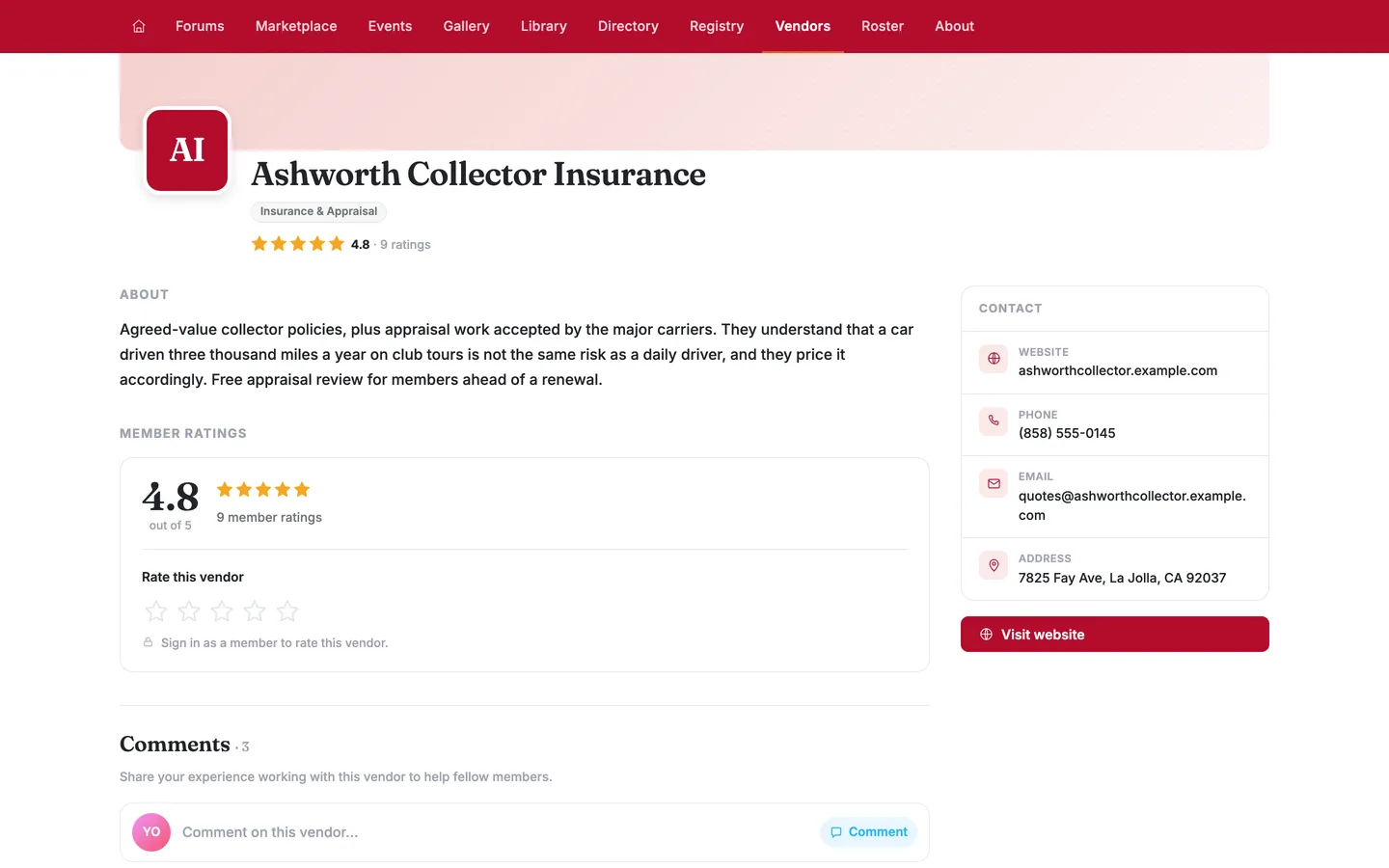
A vendor can carry several categories, so the chip counts can add up to more than your total vendor count. Opening a card shows the full profile with an About section and a Contact panel.
Ratings and comments
Members must sign in to rate or comment. Ratings are out of five stars, and a member has to leave a comment before the star rating unlocks. The page says so in place: "Leave a comment below to unlock star ratings." Each profile shows the average rating and how many members rated. Comments work like the discussion threads in club forums. Moderation is delete-only: an admin can remove a comment, but there is no hide-and-restore, so removal is permanent.
If the directory is Members only, people who are not members see "Vendors is for members" (the page's name in your club menu, then "is for members"). Visitors who are signed out get Sign in and Join the club buttons; signed-in non-members get Join the club. Add people with Add members. If the directory has no vendors yet, admins see "No vendors yet" and visitors see "Vendor list coming soon".
Fixing problems
Messages on the forms
"The directory needs a heading." — The Heading is blank. Type a heading.
"A category needs a name." — A category chip is blank. Type a name or remove the chip with ×.
"Two categories have the same name." — Two chips match, ignoring capitalization and extra spaces. Rename or remove one.
"A name is required." — Vendor name is blank. Type the business name.
"Pick at least one category." — Your club has categories, so every vendor needs one. Click a chip under Categories.
"A description is required." — Description is blank. Say what the vendor does.
"Add at least one way to reach this vendor: website, phone, email or address." — All four contact fields are blank. Fill in any one.
"Enter a valid website (e.g. acmeautorepair.com)." — The website has spaces, no dot in the domain, or is not a web address. Correct it.
"Enter a valid email address." — The email is not in the form name@domain.com. Correct it or clear it.
Messages after you click Save
Each failure shows a red message beginning with "Couldn't" and naming what failed, followed by the reason. The reason may come from the server. If there is none, you see "Your other unsaved changes are still here." You may see Vendor Directory saved and an error together, because the success message appears first.
"Couldn't save the heading", "Couldn't save who can see it" — The heading, subheading, or visibility change did not save. Check the reason, then click Save again.
"Couldn't add the category", "Couldn't rename the category", "Couldn't remove the category" — The message names the category. Click Save again. Only what is left gets sent.
"Couldn't add", "Couldn't save", "Couldn't remove", "Couldn't save the photo for" — The message names the vendor in quotes, for example Couldn't save the photo for "Heritage Coachworks". Click Save again. If the vendor was created but its photo failed, the retry uploads only the photo and does not make a duplicate.
"We couldn't reach the server. Check your connection and try again." — Your connection dropped. Reconnect and click Save again.
"Something went wrong on our end. Please try again." — A temporary problem on our side. Wait a moment and click Save again.
"That request couldn't be completed." — The server refused the request without saying why. Check the form for problems, then try again. If a message begins with a field name and a colon, fix that field.
"Category not found after adding it" — The category was sent but could not be found afterward. Reopen the editor, check the list, and save again.
"Vendor not found after adding it" — The vendor was sent but could not be found afterward. Reopen the editor and check before you add it again, so you do not make a duplicate.
"The server accepted it but kept the category. This is a known backend issue." — The category could not be removed. It stays in the list. Contact support if you need it gone.
"Couldn't load this vendor" — "It may have been removed, or something went wrong loading it." The vendor was deleted, or its page did not load. Click Try again. If the message stays, the vendor has been removed. Click Vendor Directory to go back to the list.
When there is no message
- Save is gray. Nothing changed, the page is still loading, the heading is blank, the subheading is over 260, a category has a problem, or a vendor you added or edited is incomplete. Open the vendor from the list to see its errors. Vendors tagged Needs info that you have not touched do not block saving.
- A vendor row says Needs info. That vendor is missing a required item. Open it and fix it.
- The editor shows no vendors and no categories, but you have some. The lists may have failed to load. Close without saving, then open the editor again. Do not save from an empty-looking list.
- A cover image does not appear after you pick it. The editor skips a file it can't use without showing a message. Pick a JPEG, JPG, PNG, WebP, GIF, AVIF, HEIC, or HEIF image under 25 MB. A PDF, a document, or a larger photo is ignored.
- You typed an address and nothing else happens. The address is free text with suggestions. Pick a suggestion if one fits.
Messages only members see
- Rating and commenting ask you to sign in first.
- "Search failed" with a Retry button means the search did not run. Click Retry.
- "No vendors match your search or filter. Try a different category or clear your search." means exactly that. Change the filter.
Tips & tricks
- A photo of the vendor's own work, like a finished repaint or a car on their trailer, makes a better cover image than their logo.
- Add your best three or four vendors before you announce the directory. A thin list teaches members it is not worth checking.
- Ask the shop for a members' perk, such as a free appraisal review. It gives members a reason to use the directory.
- If a shop changes hands, edit the existing entry instead of deleting it.
- Leaving the editor with unsaved changes asks you to confirm discarding them. You cannot close it while a save is running.
Frequently asked
Can members add vendors themselves? No. Admins and Site Managers add, edit, and remove vendors. Members contribute through ratings and comments.
Is the directory visible to non-members? That is up to you. Under Who can see it, choose Visible to public or Members only. This setting is separate from the rest of your club site.
Do vendors get an account or a notification? No. A vendor profile is a listing your club maintains. Vendors are not invited and cannot edit their own entry.
Can a vendor be in more than one category? Yes, and it is common. That is why the filter counts can total more than the number of vendors.
Does deleting a vendor delete its comments? Yes, as far as members can tell. Removing a vendor takes down its page, including its ratings and comments, and anyone who follows an old link sees "Couldn't load this vendor". It can't be undone, so if you only need to change details, edit the vendor instead.
How do I turn the directory off? Switch off the Vendor Directory row in the Admin Control Panel Features list. The Vendors item leaves your club navigation.