Set up membership IDs
A membership ID is the permanent ID each member keeps in your club, such as PCMC-0042-M. The app also calls it a member number. Set your club's format once, and RumbleSeat gives every new member the next ID when they're approved, gives IDs to the members you already have in one step, and refuses duplicates. Clubs use membership IDs on name badges and membership cards, and to find members fast at a check-in table.
Before you begin
- Who can do this: the settings live under Management → Membership, which Full admins and Treasurers can open. To give one member an ID, you need to be able to edit member records: Owners, Co-Owners, Administrators and Treasurers. See Manage members.
- Decide your format: a prefix such as your club's initials, a number length, and an optional suffix.
- Already numbering members? Find your highest number. If your old IDs use a different format, convert them to the new one before you import or type them. RumbleSeat compares whole IDs, so an old 214 and a new PCMC-0214-M count as different IDs.
- Time: about two minutes.
Step-by-step
Set your format
- Open your club site and open the Control Panel. See Access the Control Panel.
- Click the Management tab, then Membership. The Membership sheet opens.
- Under Sections, click Membership ID.
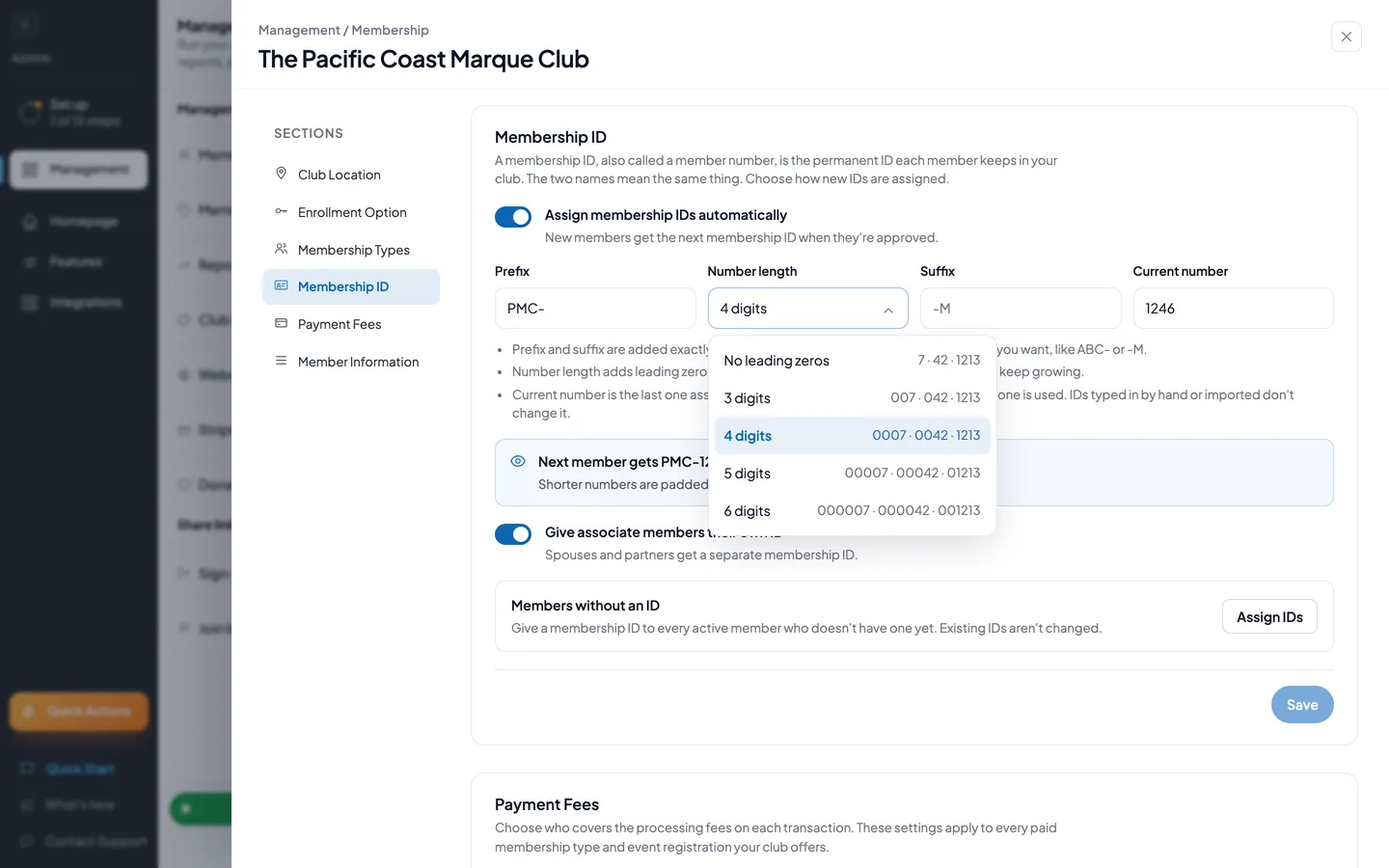
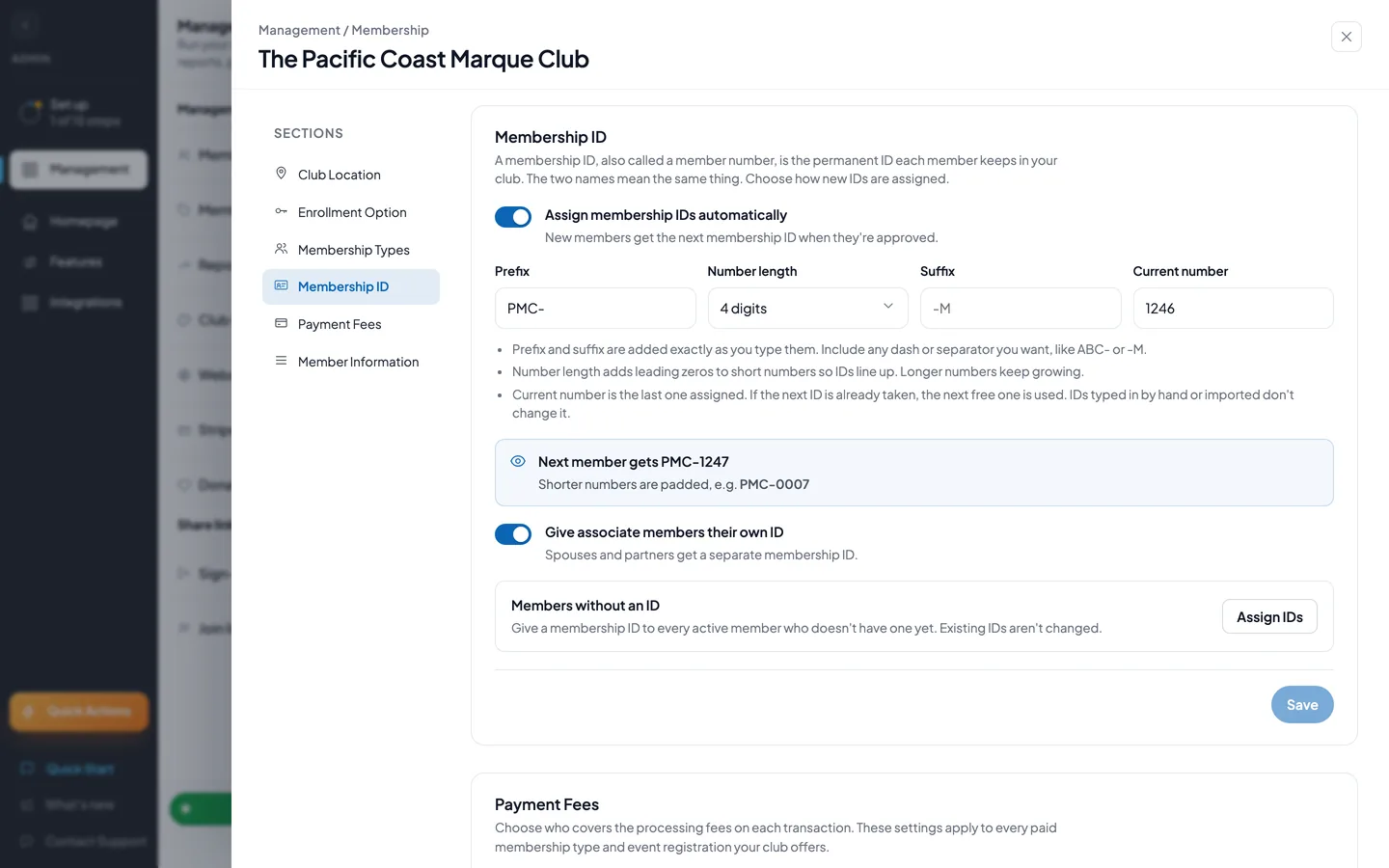
- Turn on Assign membership IDs automatically. The note under it reads "New members get the next membership ID when they're approved."
- Enter a Prefix, such as
PCMC-. Type any separator yourself. - Open Number length and pick No leading zeros or 3 to 6 digits. Each choice shows examples.
- Enter a Suffix if you want one, such as
-M. - Enter your Current number, the last number already given out. A new club leaves it at 0. If your club already numbers members, enter your highest number.
- Check the preview. Next member gets shows the next ID, and a padded example shows how short numbers will look.
- Turn on Give associate members their own ID if spouses and partners should get an ID of their own.
- Click Save. You see Membership ID settings saved.
Give IDs to the members you already have
- In the Membership ID section, find Members without an ID. Once automatic assignment is on and saved, it shows how many active members don't have a membership ID yet.
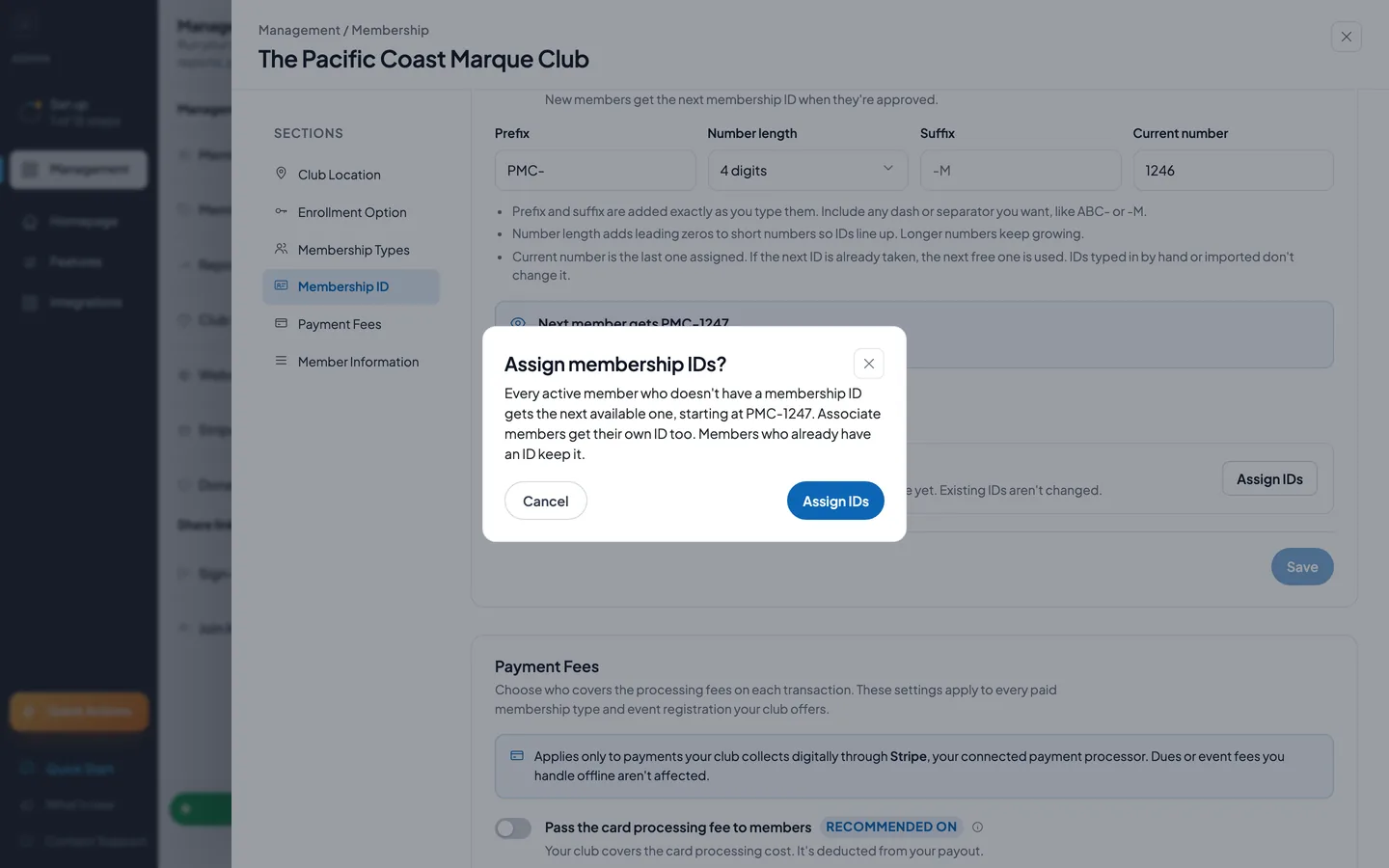
- Click Assign IDs. The Assign membership IDs? confirmation shows who gets an ID and the first ID they'll get.
- Click Assign IDs in the confirmation. You see a message such as 12 membership IDs assigned.
Give one member an ID
- In the Control Panel, click Management, then Members.
- On the Roster tab, click Edit on the member's row. For a past member, use the Inactive tab. Their record opens.
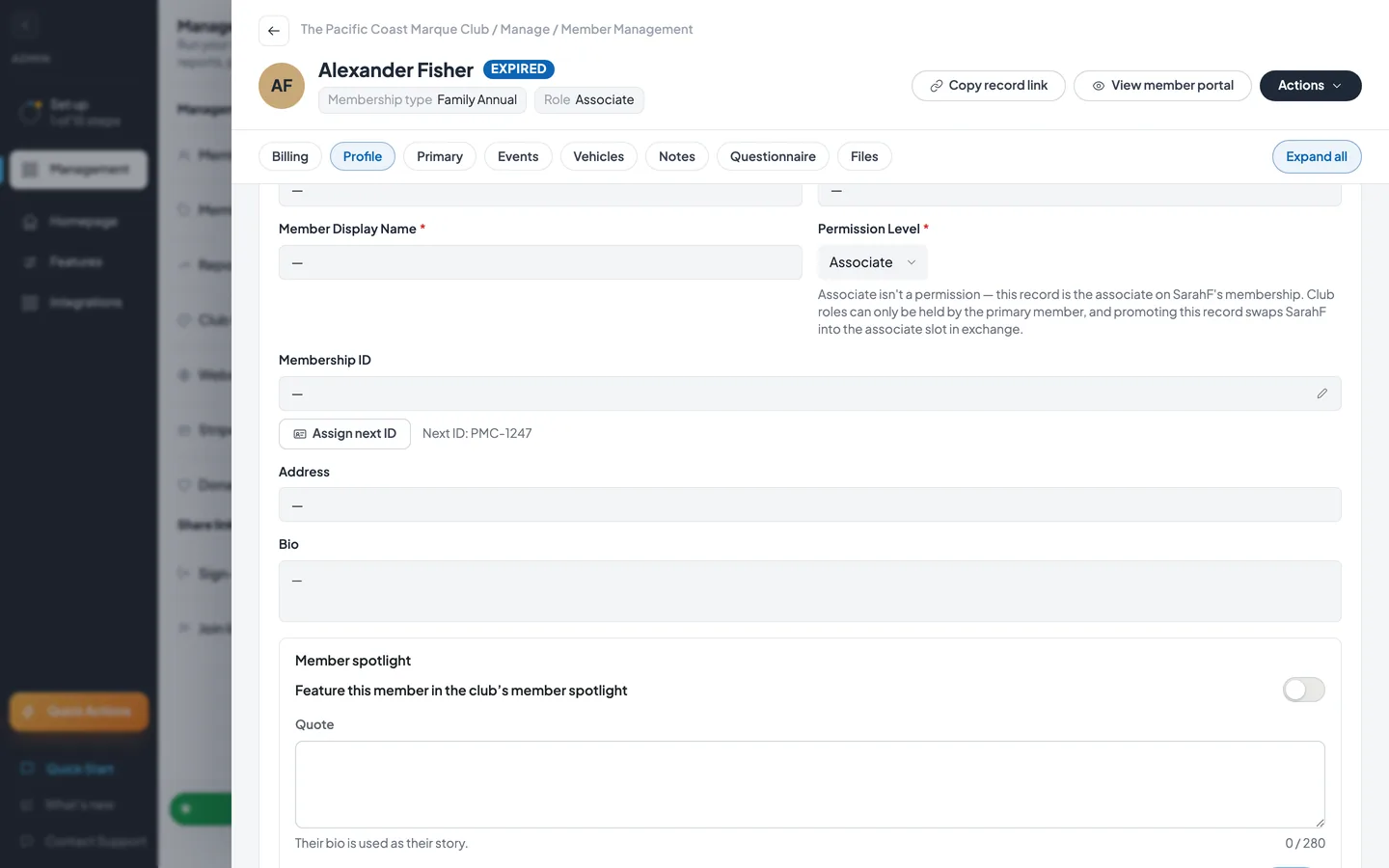
- Click Member Profile & Contact Info to open it, and find Membership ID.
- To give them the club's next ID, click Assign next ID. Next ID beside the button shows the ID they'll get. You see a message with their new ID, such as Membership ID PCMC-0042-M assigned.
- To type a specific ID instead, click the pencil next to Membership ID, type the ID and press Enter. Press Escape to cancel. You see Membership ID updated.
Add a member with an ID
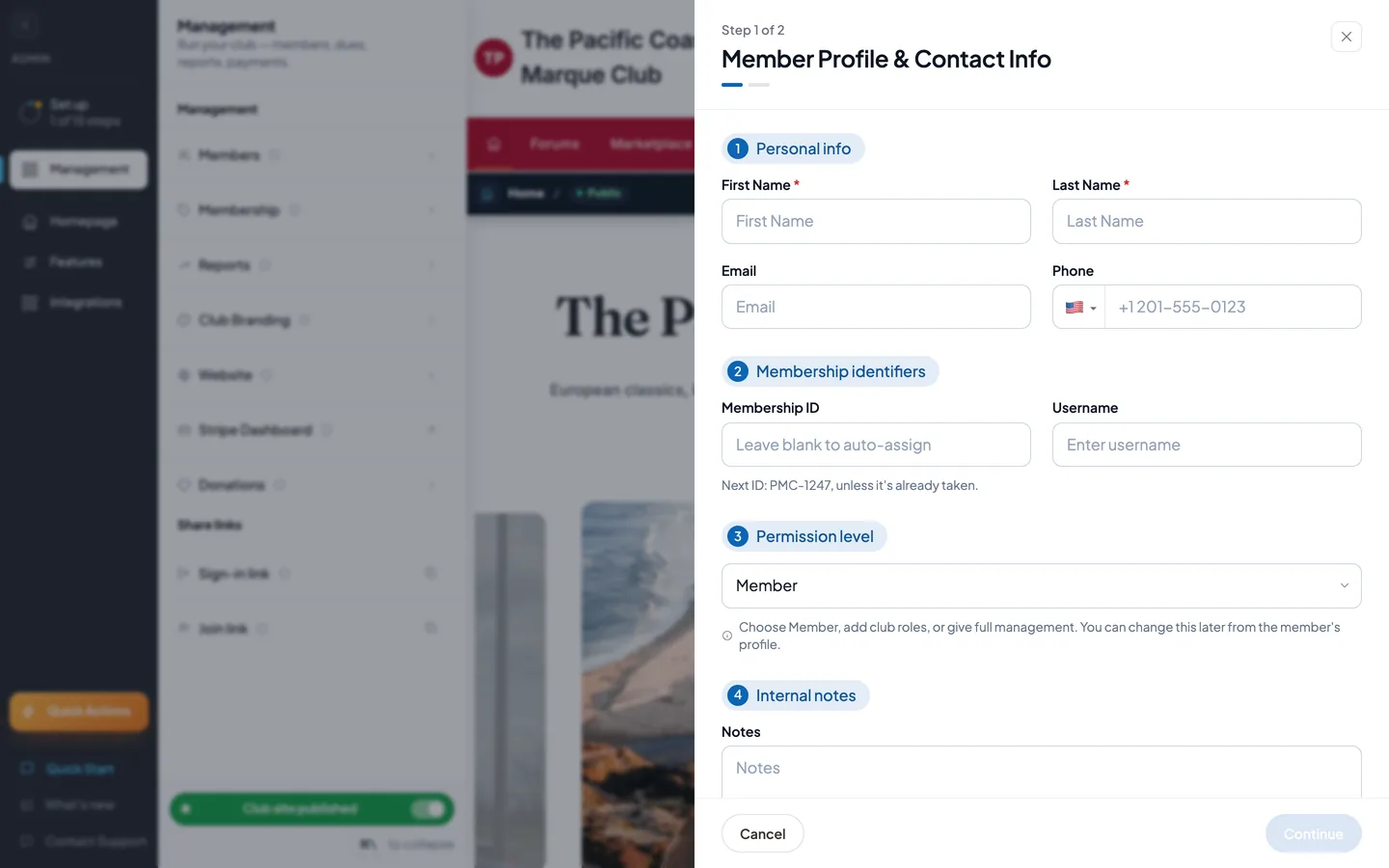
- In Members, click Add Members, then Add manually. For the rest of the form, see Add members.
- Under Membership identifiers, leave Membership ID blank to have RumbleSeat assign the next ID. The field reads "Leave blank to auto-assign" and shows the next ID under it.
- To use a specific ID, type it. If another member already has it, the form tells you who before anything is saved.
Field reference
| Field | Required | Format / limits | Notes |
|---|---|---|---|
| Assign membership IDs automatically | No | Switch, off by default | On: new members get the next ID when they're approved. Also needed for Assign IDs and Assign next ID. Turning it off keeps every existing ID. |
| Prefix | No | Text, up to 10 characters | Added before the number exactly as typed, separator included. Spaces at the start or end are dropped. |
| Number length | No | No leading zeros, or 3, 4, 5 or 6 digits | A minimum length. Short numbers get leading zeros, and longer numbers keep growing, so 9999 is followed by 10000. |
| Suffix | No | Text, up to 10 characters | Added after the number, such as -M. Spaces at the start or end are dropped. |
| Current number | Yes | Whole number, 0 or more | The last number given out, 0 by default. The next ID uses the number after it and skips any ID already taken. IDs typed in by hand or imported don't change it. |
| Give associate members their own ID | No | Switch, off by default | Off: only primary members get an ID, and Assign IDs skips associate members. |
| Membership ID (member record) | No | Text | Must be unique in your club. Capital letters and spaces before or after are ignored when checking. Enter saves, Escape cancels. |
| Assign next ID (member record) | No | Button | Shows only when the member has no ID and automatic assignment is on. |
| Membership ID (Add manually) | No | Text | Blank: RumbleSeat assigns the next ID. Typed: checked against your other members before saving. |
What happens next
- New members get the next ID when they're approved. A member you add by hand with a blank Membership ID gets one too.
- Assign IDs numbers active members who don't have an ID, in the order they joined, oldest first. Pending and inactive members aren't included. Members who already have an ID keep it.
- If the next ID is already taken, RumbleSeat skips to the next free one.
- Members see their own ID on your club site's Membership page, under Member number. In Members, the Member # column shows every member's ID, the search matches IDs, and the list's CSV export includes them.
- Changing the format only affects IDs given out afterwards. Existing IDs stay as they are. Turning automatic assignment off stops new numbering and keeps every existing ID.
- Membership IDs in a member import file come in with your members and don't move Current number. When a row in a later import matches a member by email but has a different number, the file's number replaces their ID. A blank number cell leaves their ID alone.
Fixing problems
"Current number must be a whole number, 0 or more." — Current number has letters, a decimal point or a minus sign. Enter digits only. Save stays unavailable until you do.
"Couldn't save membership ID settings" — the save failed, and the message under it gives the reason. Try again in a moment.
"We couldn't load your membership settings. Try again." — RumbleSeat couldn't read your current membership settings, so it saved nothing. Wait a moment and click Save again.
"Save your changes first. IDs are assigned using your saved settings." — you changed a setting without saving. Click Save, then Assign IDs.
"Turn on Assign membership IDs automatically and save, then you can give IDs to members who don't have one." — automatic assignment is off, or on but not saved. Turn it on and click Save.
"Every active member has a membership ID." — there's nobody to number, so Assign IDs stays unavailable.
"Couldn't assign membership IDs" — the bulk assign reported an error, but some or all IDs may have been assigned anyway. The section refreshes the count and the next ID by itself. Check them, and the Member # column in Members, before you click Assign IDs again.
"No members needed an ID" — every active member already had an ID when you clicked Assign IDs.
"That membership ID is already in use." — another member of your club has this ID. Choose a different one.
"No membership ID was assigned. Try again, or type one in." — no ID came back. Click Assign next ID again, or type an ID with the pencil.
"Couldn’t assign a Membership ID" or "Couldn’t update Membership ID" — the message under it gives the reason. Fix that and try again.
"This membership ID is already assigned to …" — shown in Add manually with the other member's name, or "to another member." Choose a different ID, or leave the field blank to get the next one.
If Assign next ID doesn't appear, the member already has an ID, or automatic assignment is off or not saved. If a member gets a different ID from the preview, the previewed ID was already taken, so the next free one was used. If Members without an ID shows a general description instead of a count, the count couldn't be loaded. Assign IDs still works.
Tips & tricks
- Bringing over numbers from a spreadsheet? Put them in your new format first, then set Current number to your highest number so new members continue the sequence.
- Need name badges or membership cards? Export your Members list. The Member # column comes with it.
- At a check-in table, type a member's ID into the Members search to find them.
- Use the preview's padded example to check your number length before you save.
Frequently asked
Do membership IDs reset every year? No. Membership IDs belong to people, not membership years. A member keeps the same ID unless an admin changes it.
What happens to a member's ID when they leave? It stays on their record, so the ID stays taken. Automatic numbering only counts up from your Current number, so it never hands an old ID to someone new.
Can two members have the same membership ID? No. RumbleSeat checks every ID typed in your club and ignores capital letters and spaces before or after, so pcmc-0042-m and PCMC-0042-M count as the same ID.
What happens after 9999? Number length is a minimum, so with 4 digits the number after 9999 is 10000.
Can a member have a different ID in each club? Yes. Membership IDs are unique within each club, so a member of two clubs can carry a different ID in each.